
Command-Line Tool
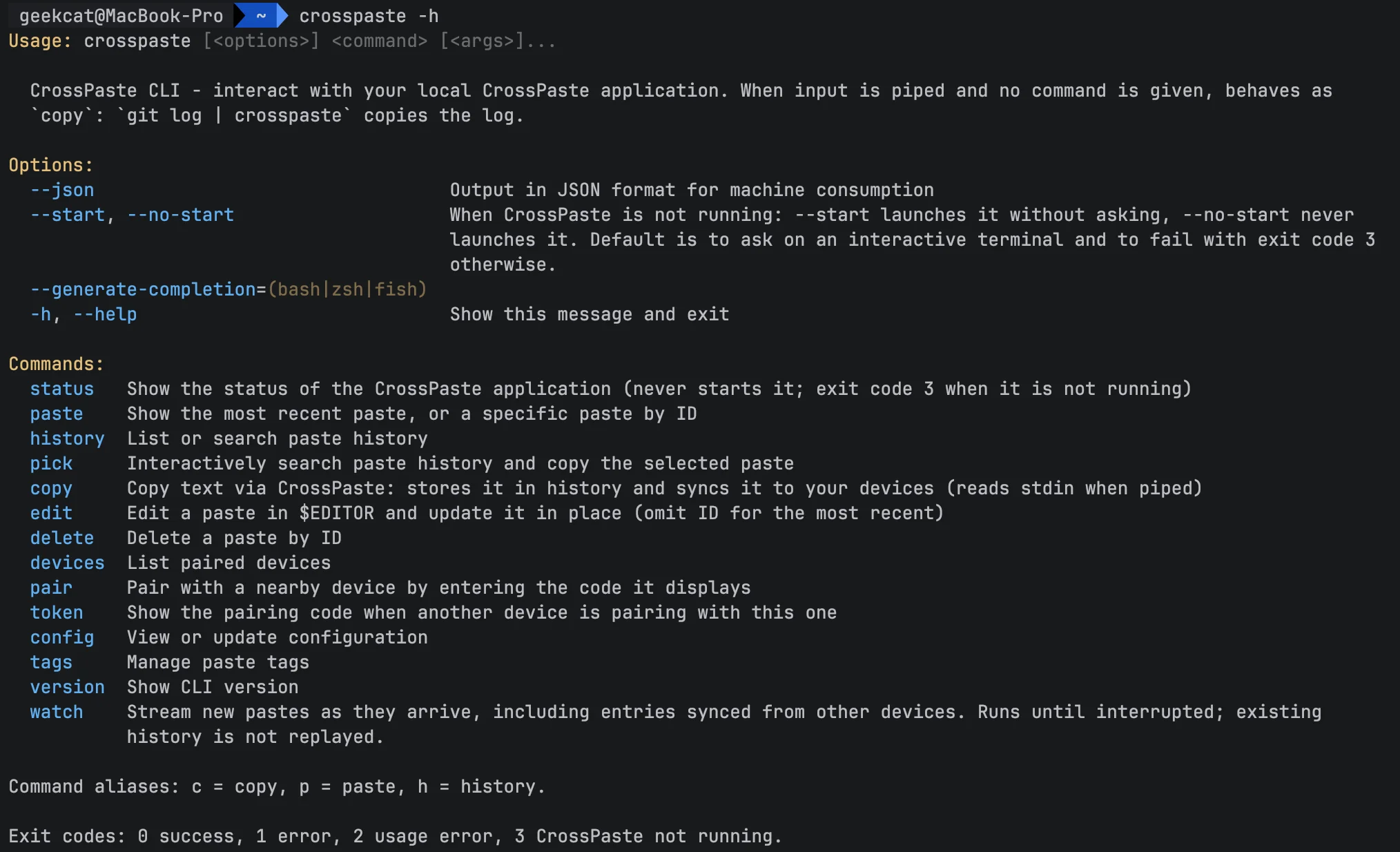
Starting with version 2.2.0, every CrossPaste desktop package ships with a native command-line tool, crosspaste. Copy, paste, search your history, pick entries interactively, stream new pastes live, pair devices — and even run CrossPaste on a headless server — all from your terminal and scripts.
Why terminal users need this
The clipboard is the system capability you use most — and the one your scripts can touch least. The CrossPaste CLI turns it into a first-class command-line citizen:
- Pipe to copy:
git log -1 --format=%H | crosspaste— command output goes straight into your clipboard history and syncs to every paired device. - A programmable history: your clipboard history is no longer just a GUI panel; it's a data source you can
grep,jq, andxargs. - Cross-device by nature: copy a log snippet on a server over SSH, and it shows up on your Mac and your phone.
- Unix conventions respected: output on stdout, prompts on stderr, meaningful exit codes,
--jsoneverywhere,NO_COLORand$EDITORhonored. Every habit you already have just works.
It's a standalone binary compiled with Kotlin/Native — instant startup, no JVM warm-up, built for pipes and scripts.
Installation
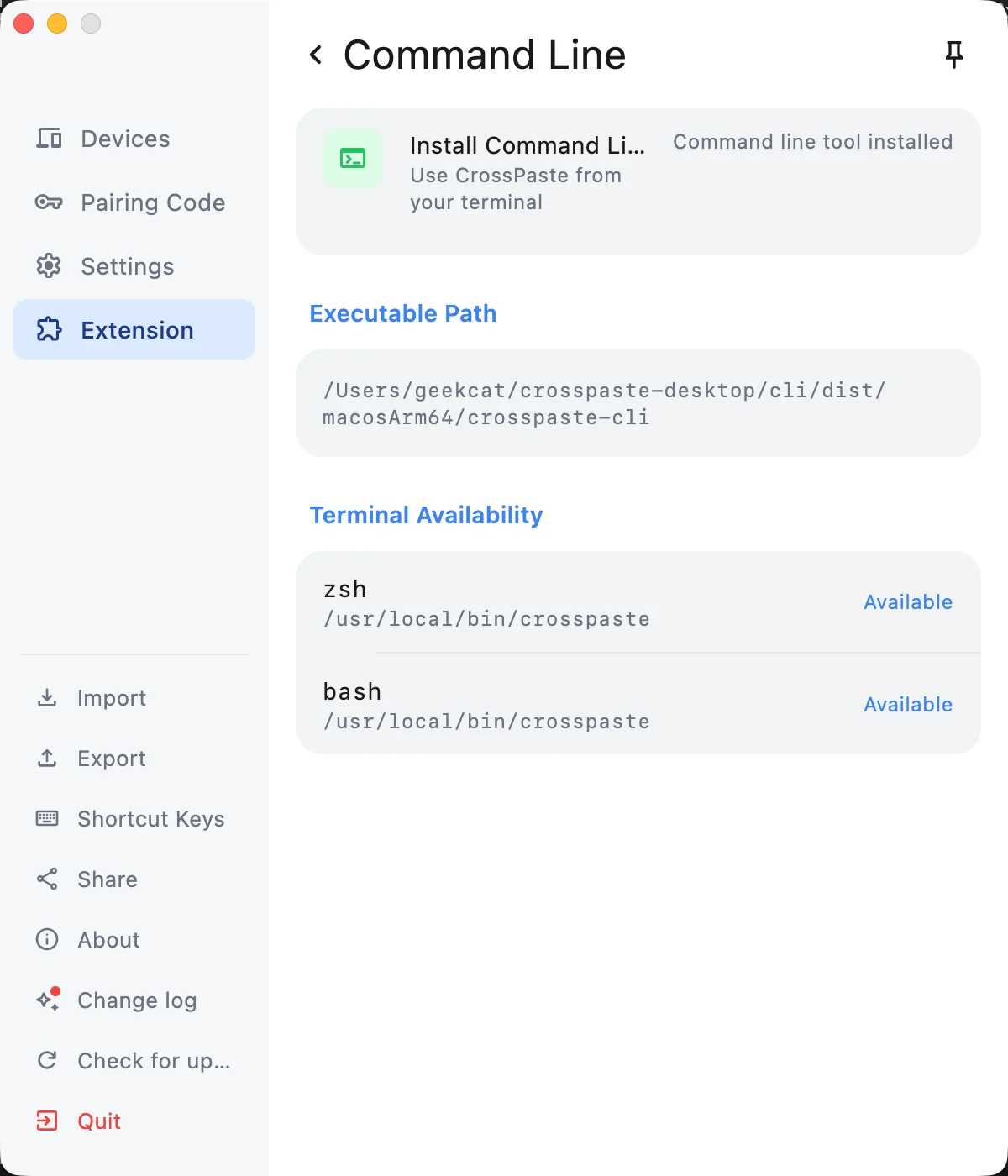
The CLI is already bundled in the desktop package; it just needs to be on your PATH:
| Platform | Command | How to install |
|---|---|---|
| macOS | crosspaste | One-click install prompt on first launch, or anytime under Extensions → Command Line |
| Windows (installer / Store) | crosspaste-cli | Automatic, works out of the box |
| Windows (zip) | crosspaste-cli | One-click add-to-PATH inside the app (open a new terminal afterwards) |
| Linux (deb) | crosspaste | Automatic: installs /usr/bin/crosspaste |
| Linux (tarball) | crosspaste | Manual symlink: sudo ln -s <install-dir>/lib/app/bin/crosspaste-cli /usr/local/bin/crosspaste |
Why is it crosspaste-cli on Windows?
On Windows the crosspaste command is reserved for launching the GUI app, so the CLI is named crosspaste-cli. Examples on this page use crosspaste — Windows users just swap the command name.
Verify the install:
crosspaste statusIt prints the app version, listening state, device count, and history size. This is the only command that never auto-starts the app — it exits with code 3 when the app isn't running, which makes it perfect for health checks.
Up and running in 30 seconds
The three most common operations, each with a one-letter alias (c / p / h):
# Copy: from an argument, or from a pipe
crosspaste copy "hello world"
echo "hello world" | crosspaste     # with piped input you can even drop the subcommand

# Paste: print the latest entry to stdout
crosspaste paste

# History: the latest 20 entries
crosspaste history
That's right — piped input needs no subcommand at all. git log | crosspaste stores the log in your history. It's the single most satisfying design decision in the whole CLI.
If the app isn't running, the CLI asks whether to start it on an interactive terminal; in a script it fails immediately with exit code 3 instead of blocking on input. Use --start / --no-start to control this explicitly.
Searching and filtering history
history supports the same filters as the in-app search window:
crosspaste history TODO                        # keyword search
crosspaste history --type link --limit 50      # filter by type: text/link/image/file/html/rtf/color
crosspaste history --tag work --sort oldest    # by tag, oldest first
The output formats are made for scripting:
crosspaste history TODO --format json | jq '.items[].preview'   # full metadata
crosspaste history --format id | xargs -n1 crosspaste delete    # ids only, for bulk cleanup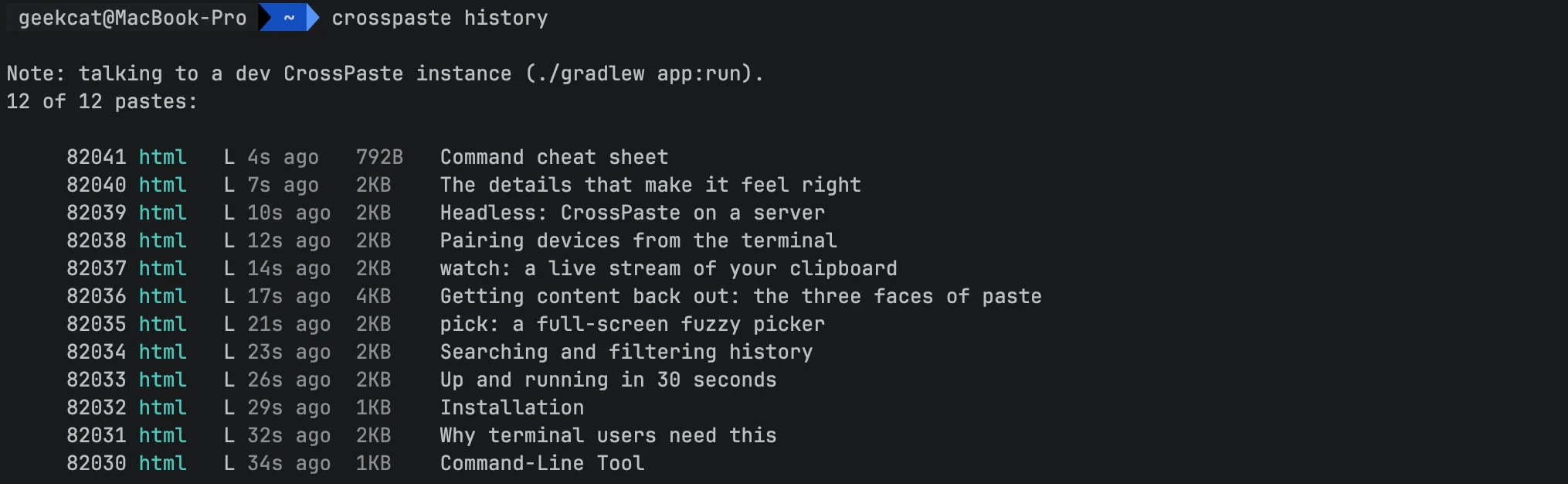
pick: a full-screen fuzzy picker
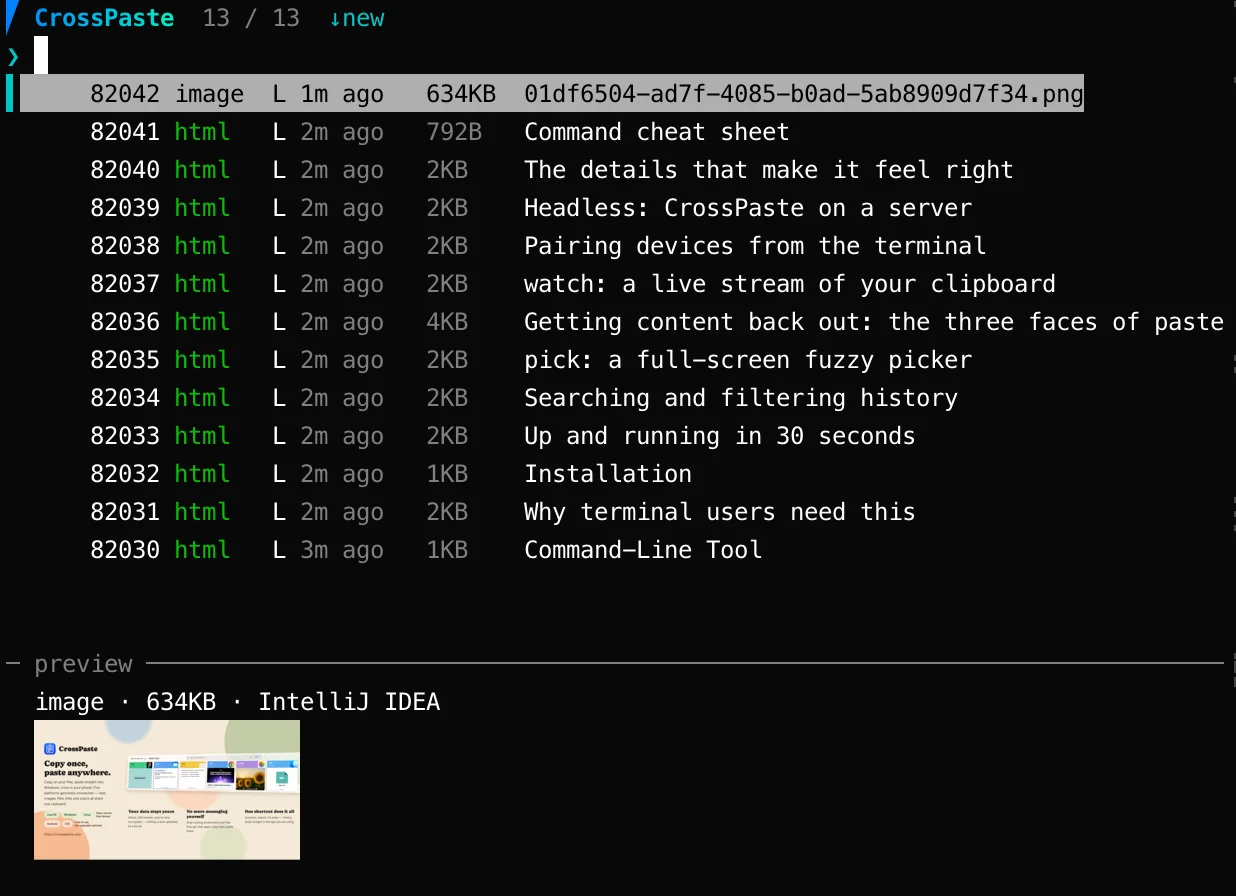
crosspaste pick opens an fzf-style full-screen interface: filter as you type, hit Enter to copy the selected entry.
crosspaste pick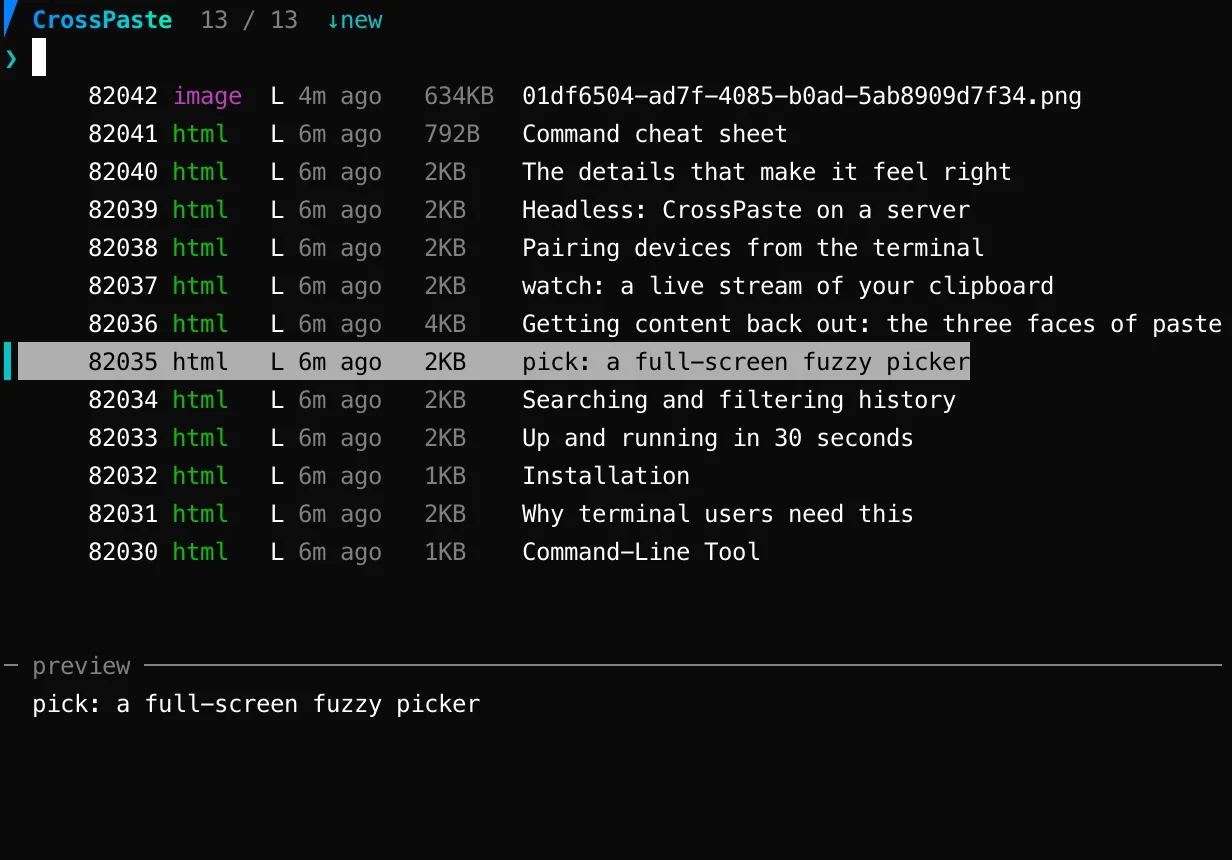
Key bindings:
| Key | Action |
|---|---|
↵ | Copy the selected entry and exit |
^e | Edit the selected entry in $EDITOR |
^t / ^g | Filter by type / tag |
^s | Toggle sort order |
⇥ | Toggle the preview panel |
? | Help |
esc | Close a selector / clear the query / quit |
Cancelling exits with code 130, following the fzf convention.
Getting content back out: the three faces of paste
crosspaste paste             # default: a friendly summary
crosspaste paste --summary   # plain-text rendering (HTML/RTF converted to text)
crosspaste paste --raw       # raw content: HTML/RTF print their source, images dump bytes
--raw turns clipboard images into ordinary byte streams:
crosspaste paste --raw > screenshot.png                   # save a screenshot to disk
crosspaste paste --raw | magick - -resize 50% small.png   # process it in a pipe
Add --no-newline to guarantee not a single extra byte when redirecting to a file.
Note for Windows users
Windows PowerShell 5.1's > re-encodes output as UTF-16 and corrupts binary data. To save images, use cmd /c "crosspaste-cli paste --raw > shot.png", or upgrade to PowerShell 7.4+.
Images, rendered right in your terminal
In capable terminals, paste and the pick preview panel render clipboard images inline as real pixels — Kitty / Ghostty (Kitty protocol), iTerm2 / WezTerm (OSC 1337), and sixel terminals like Windows Terminal. Under tmux it gracefully falls back to printing the file path.
watch: a live stream of your clipboard
watch continuously prints new pastes as they arrive — including entries synced from your other devices. The default output is one clean line per paste, born ready for pipes:
crosspaste watch --type link | xargs -n1 yt-dlp        # copy a video link on your phone, your PC downloads it
crosspaste watch --format json | jq '.preview'          # full metadata stream
crosspaste watch --format id | while read -r id; do     # archive exact bytes, entry by entry
  crosspaste paste "$id" --raw > "paste-$id.txt"
done
Picture it: you copy a link on your phone, and seconds later your workstation starts processing it. That's the automation space that "clipboard + sync + pipes" opens up.
Note that watch is a live feed, not a durable queue — events that arrive while the CLI isn't running are not replayed. It does reconnect automatically across app restarts.
Pairing devices from the terminal
Device pairing no longer needs a GUI either:
crosspaste pairIt lists pairable devices on your LAN; pick one and type the 6-digit code shown on the other device (input is hidden).
What if the other end is a machine with no screen? That's exactly what token is for:
# on the headless server (over SSH, say)
crosspaste token --wait

# on your computer
crosspaste pair
token displays this machine's pairing code. The code owns stdout exclusively — CODE=$(crosspaste token) just works — while all context lines go to stderr. Codes rotate every 30 seconds, and --wait waits for a pairing request while keeping the acceptance window open.
Headless: CrossPaste on a server
The CrossPaste desktop app accepts a --headless flag to run as a daemon (enabled automatically when no graphical environment is present). That means a Linux server can be a node in your clipboard network:
crosspaste --start status # on a GUI-less machine, the CLI starts the app in headless modeWith a systemd user unit you get start-on-boot and survive-logout. From then on, crosspaste copy on that server syncs to all your devices, and watch receives new entries from them.
The one limitation is the intuitive one: headless mode has no system clipboard, so "copy a history entry back to the system clipboard" is unavailable — everything else works.
The details that make it feel right
Good CLI tools live and die by their details. These are the ones we made sure to get right:
- Zero network exposure: the CLI talks to the app over a local HTTP API on a Unix domain socket — file mode 0600, no TCP port, unreachable from the network.
- A clean stdout: every prompt, progress line, and question goes to stderr; stdout carries nothing but the command's output. Pipes and redirects always get clean data.
- Meaningful exit codes: 0 success, 1 error, 2 usage error, 3 app not running. Your scripts can branch precisely.
--jsoneverywhere: any command can emit machine-readable JSON.- Shell completion:
source <(crosspaste --generate-completion zsh)— bash and fish too. - Your environment, respected:
$VISUAL/$EDITOR,NO_COLOR,COLUMNS, and colors auto-disable outside a TTY.
Command cheat sheet
| Command | What it does |
|---|---|
crosspaste copy (c) | Copy text / read piped input |
crosspaste paste (p) | Print an entry (--raw / --summary) |
crosspaste history (h) | Search and filter history |
crosspaste pick | Full-screen fuzzy picker |
crosspaste edit | Edit an entry in $EDITOR |
crosspaste delete | Delete an entry |
crosspaste watch | Stream new entries live |
crosspaste tags | Manage tags |
crosspaste devices | List paired devices |
crosspaste pair / token | Start pairing / show this device's code |
crosspaste config | View and change settings |
crosspaste status | Check app status (never auto-starts) |
For the full command reference, headless deployment guide, and more scripting examples, see the official CLI guide.