
Pasteboard — Your Cross-Device Clipboard Hub
Copying and pasting across devices has never been easier. The CrossPaste Pasteboard is the single hub for everything you copy — whether on your HarmonyOS phone, tablet, or computer, it all lands here in real time, ready to use.
CrossPaste for HarmonyOS is available on Huawei AppGallery and requires HarmonyOS 6.0 or later. It uses the same sync protocol as the desktop, Android, and iOS apps, so any device on the same local network can pair and sync.
1. Supported Paste Types
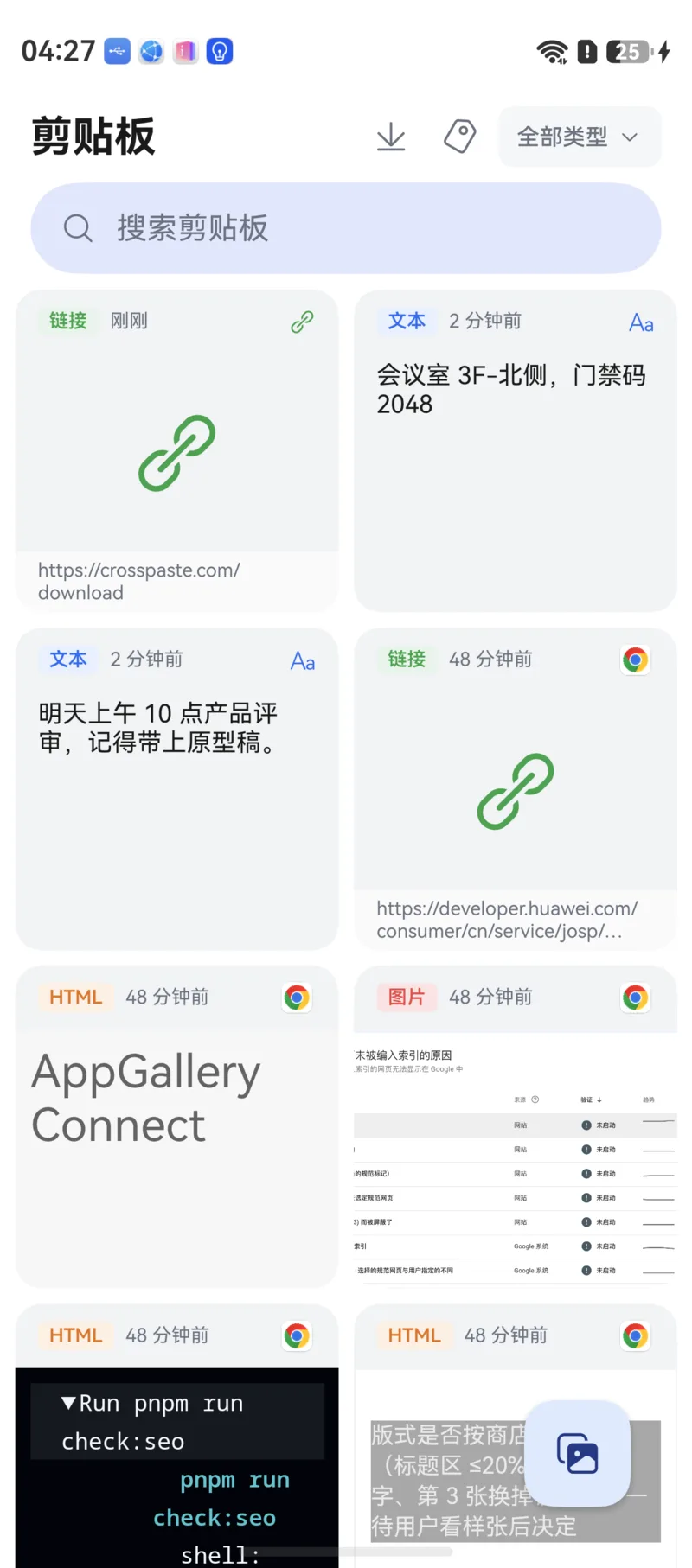
CrossPaste supports 7 paste types, each with its own color indicator so you can tell content apart at a glance:
| Type | Description |
|---|---|
| Text | Plain text — notes, memos, and more |
| Link | URLs, recognized automatically and shown with a preview |
| Image | One or more images, shown as high-resolution thumbnails |
| File | One or more files, shown with filename and icon |
| HTML | Rich web content and code snippets, with original formatting preserved |
| RTF | Rich Text Format content |
| Color | Color values, shown as a swatch with Hex / RGBA |
Multi-type recording
A single copy operation may record multiple types at once. For example, copying text from a webpage may capture both plain text and HTML. CrossPaste saves all types and displays them based on priority.
2. How Content Enters the Pasteboard
HarmonyOS has a strict permission model for reading the clipboard. Understanding it lets you predict exactly how CrossPaste behaves.
Grant Clipboard Read Permission
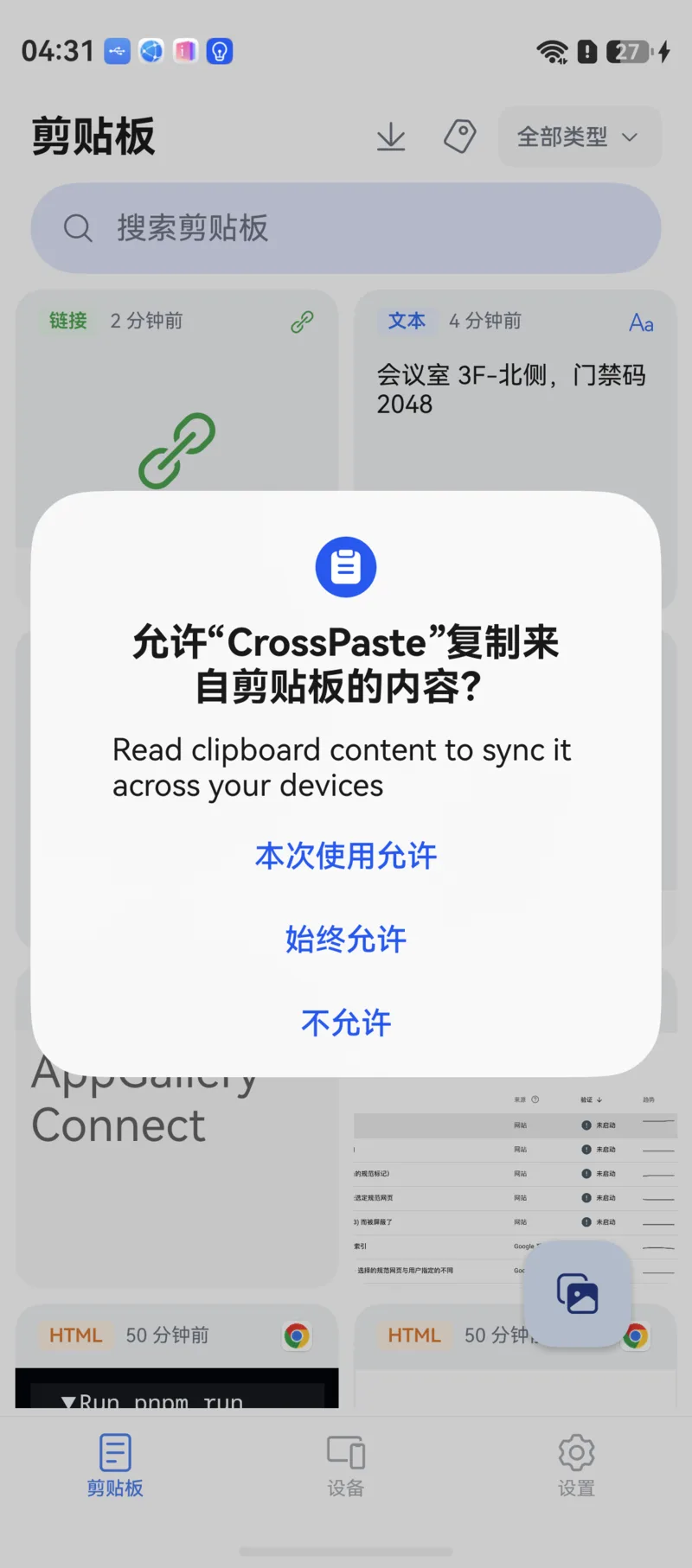
When you launch CrossPaste for the first time, the system asks for clipboard read permission. Choose Always allow — CrossPaste can only record what you copy on this device once this permission is granted.
You can revoke it at any time
You can revoke this permission in system Settings whenever you like. Automatic recording stops after revocation, but you can still send content into the Pasteboard via the share sheet or by adding it manually inside the app, and receiving content synced from other devices is unaffected.
Foreground Auto-Recording: Text / Link / HTML
While CrossPaste is in the foreground, any text, link, or HTML you copy is recorded automatically and synced to your connected devices — no extra action needed.
Image / File: Tap "Paste" to Authorize Once
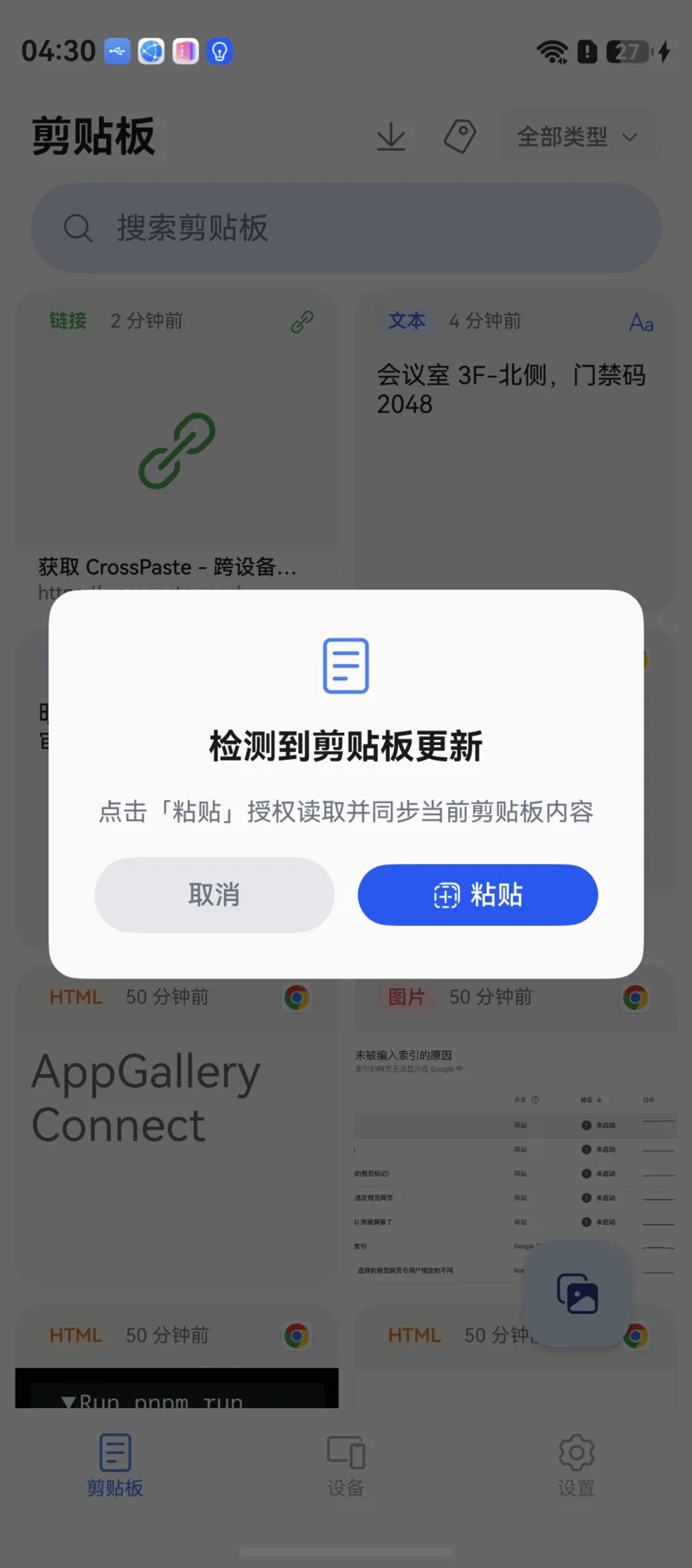
When you copy an image or file, HarmonyOS requires explicit user authorization. A Clipboard updated banner appears at the top of CrossPaste — tap the system Paste button to authorize a one-time read, and the content is saved and synced.
No Background Recording of Local Copies
HarmonyOS does not allow apps to read the clipboard in the background. Once CrossPaste moves to the background, it will not automatically record what you copy in other apps. This is a system-level privacy design, not a limitation of the app.
To get content into CrossPaste while it's in the background, the system share sheet is the easiest route: tap Share in any app → select CrossPaste. See Share to CrossPaste.
Receiving is not restricted
Content synced from other devices lands in your Pasteboard automatically, whether or not CrossPaste is in the foreground. When sync is enabled, the app requests a system continuous task to keep receiving in the background — see Devices & Sync.
3. Browsing & Viewing
Grid View
The Pasteboard uses an adaptive grid layout that adjusts the number of columns to your screen width, so it's comfortable to browse on both phones and large-screen tablets.
Each card clearly shows:
- A content preview (text snippet / image thumbnail / filename / color swatch, etc.)
- A color-coded type indicator bar
- The creation time
Detail View
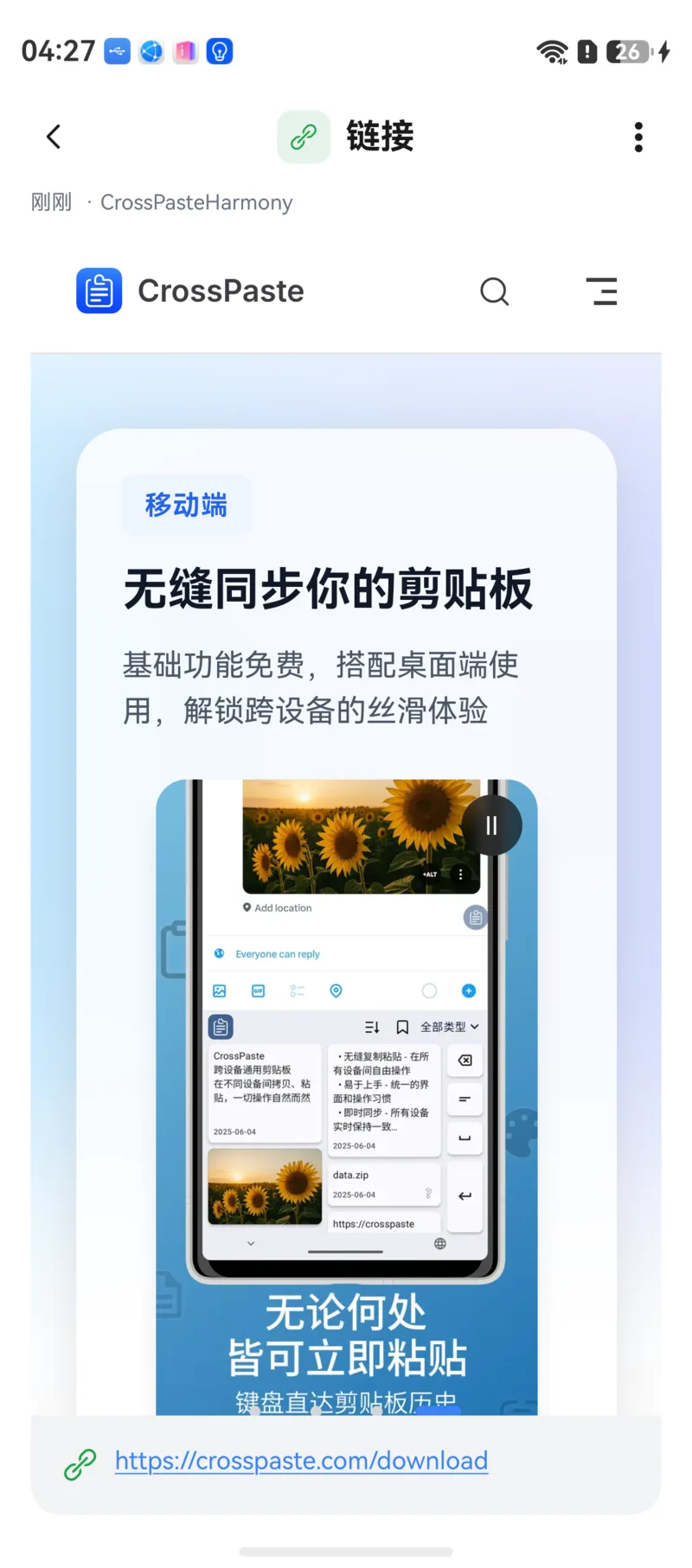
Tap any card to open the detail view and see the full content:
- Text items are shown in full
- Images support pinch-to-zoom
- File items show detailed file information
- Tap the menu button (⋮) in the top-right corner to open the action menu
- You can also long-press a card in the grid to open the same menu without entering the detail view
Action Menu
| Action | Description |
|---|---|
| Copy | Write to the system clipboard so you can paste in any app |
| Share | Send to other apps via the system share sheet |
| Sync | Manually sync to a specific device |
| Tag | Add or remove tags on the item |
| Rename | Change the item's display name |
| Delete | Remove the item from this device |
| Extract Text | Images only: OCR the text in the image; the result can be copied directly |
| Save to Album | Images only: save to the gallery after a system confirmation dialog |
| Download | When a link points to a downloadable file, download and save it directly |
Copying an existing item won't trigger sync
When you copy an item that already exists in your pasteboard, CrossPaste will not trigger a new sync to other devices — there's no need for redundant transmission.
4. Tag Management
Build your own content library with tags. CrossPaste's flexible tag system makes it easy to organize and retrieve pasteboard items:
- Add tags to any pasteboard item
- Filter the Pasteboard quickly by tag
- Use tags to build a personal snippet library
Tagged items won't be auto-cleaned
CrossPaste automatically removes items that haven't been used for a long time to free up space, but tagged items are kept permanently. Use this to tag frequently used text templates, code snippets, addresses, and more — building a long-term library of reusable content.
Custom tags are a Pro feature
Creating custom tags requires Pro Membership.
5. Search, Sort & Filter
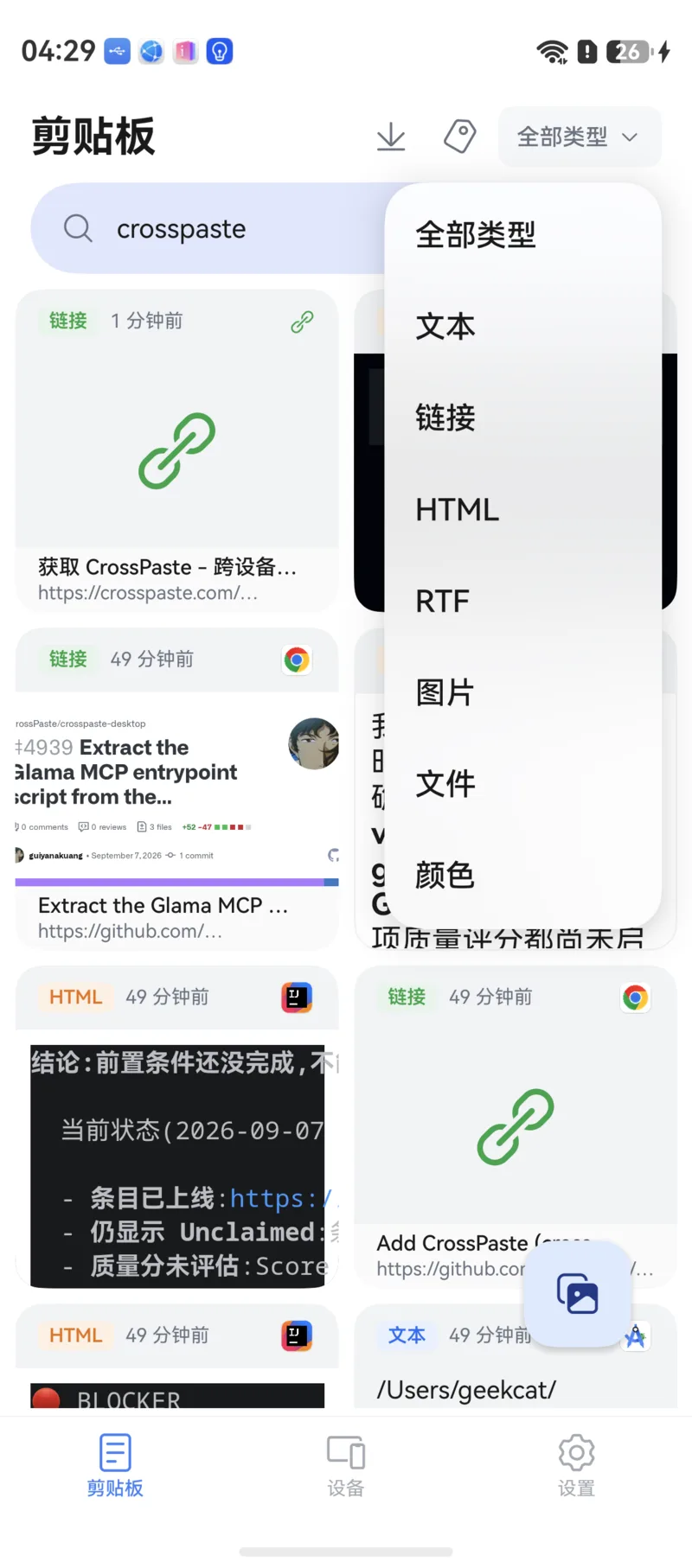
The more you collect, the more search matters. At the top of the Pasteboard you can:
- Text search: Enter keywords to pinpoint the content you're looking for
- Sort: Toggle between newest-first and oldest-first with one tap
- Type filter: Show only a specific paste type (text, link, image, etc.)
- Tag filter: Filter by an existing tag
Search and filters can be combined, so even with hundreds or thousands of items you can find what you need in seconds.
6. Multi-Select & Batch Actions
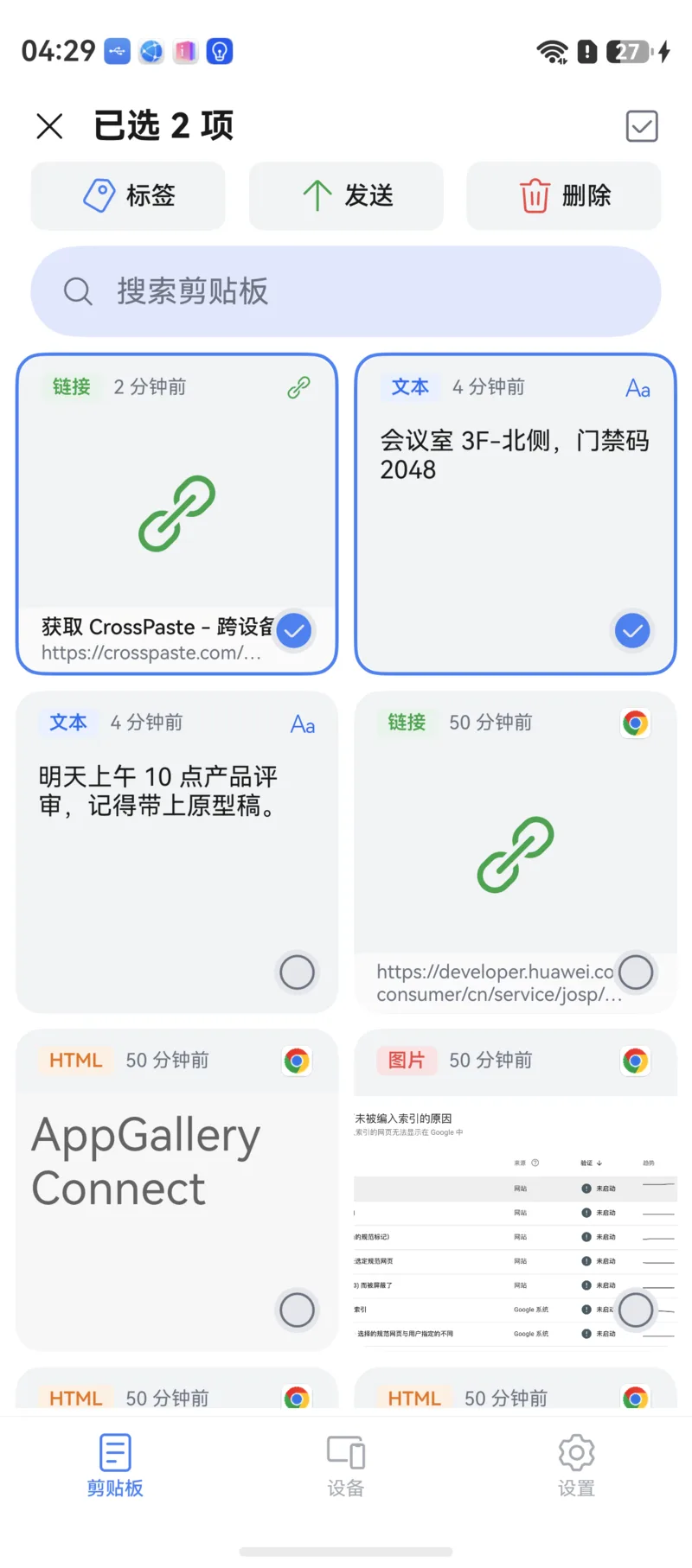
Tap Select multiple to enter batch mode. After checking multiple items you can:
- Batch delete: Clear out several items you no longer need in one go
- Batch tag: Put a group of items under the same tag
- Sync to a specific device: Pick a target device and send all selected items at once
7. Delete
Delete pasteboard items you no longer need from the detail view or the card's action menu to keep your Pasteboard tidy.
Delete is irreversible
Once a pasteboard item is deleted, its storage space is released and it cannot be recovered within CrossPaste. Make sure you no longer need an item before deleting it.