
Device Connection & Sync — Unlock True Cross-Device Experience
CrossPaste's core mission: let your clipboard ignore device boundaries. The HarmonyOS app connects seamlessly with other HarmonyOS, Android, iOS, Windows, macOS, and Linux devices — pairing takes seconds, and from then on copy and paste is no longer confined to a single device.
1. Auto-Discovery
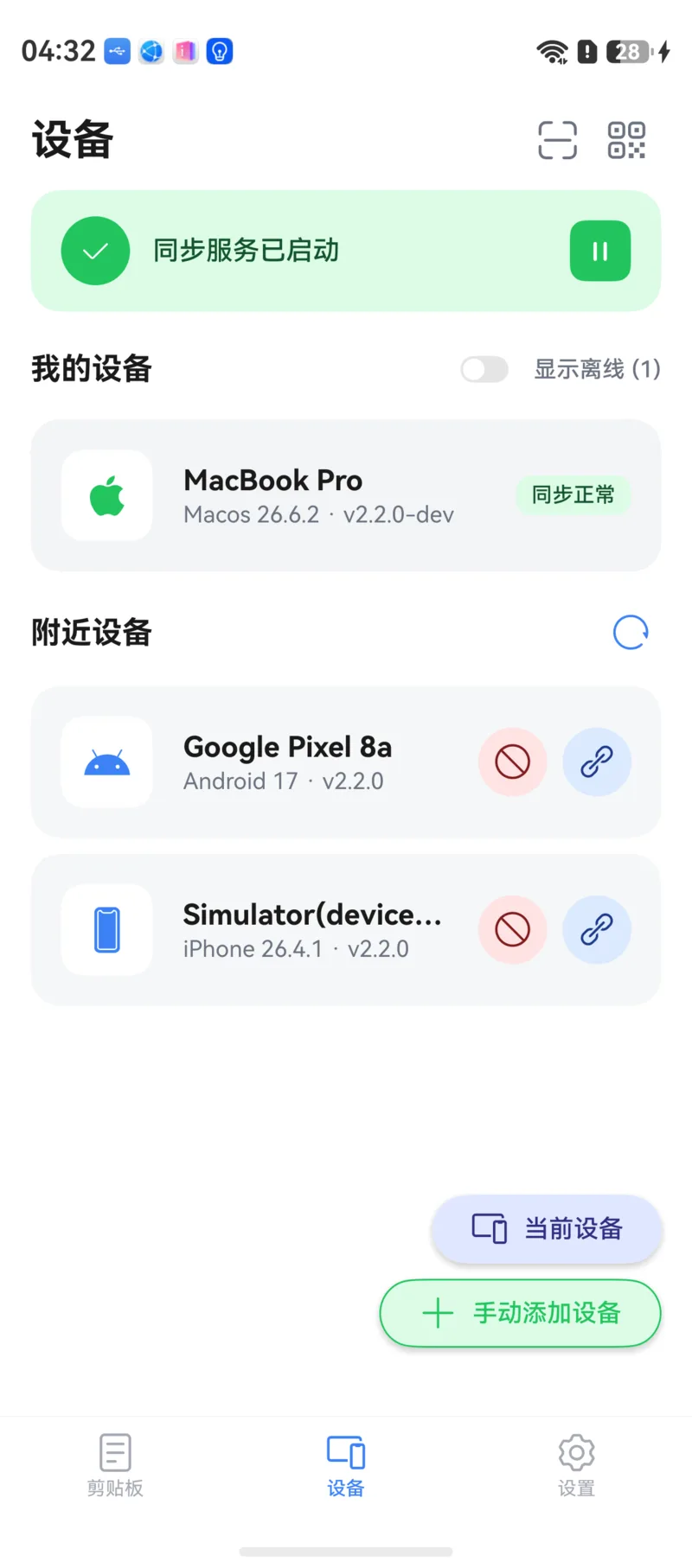
Open CrossPaste and go to the Devices tab. The app automatically scans the local network for other devices running CrossPaste — zero configuration required.
- The screen is split into My Devices (already paired) and Nearby Devices (just discovered, not yet paired)
- Just make sure both devices are on the same WiFi network
- The sync service status is shown at the top: Sync service started or Sync paused. You can start or pause it at any time
LAN Discovery
CrossPaste uses a LAN broadcast protocol for device discovery. All communication stays within your local network — no cloud servers involved.
2. Three Pairing Methods
CrossPaste offers three flexible pairing methods for different situations:
One-Tap Pairing from Nearby Devices
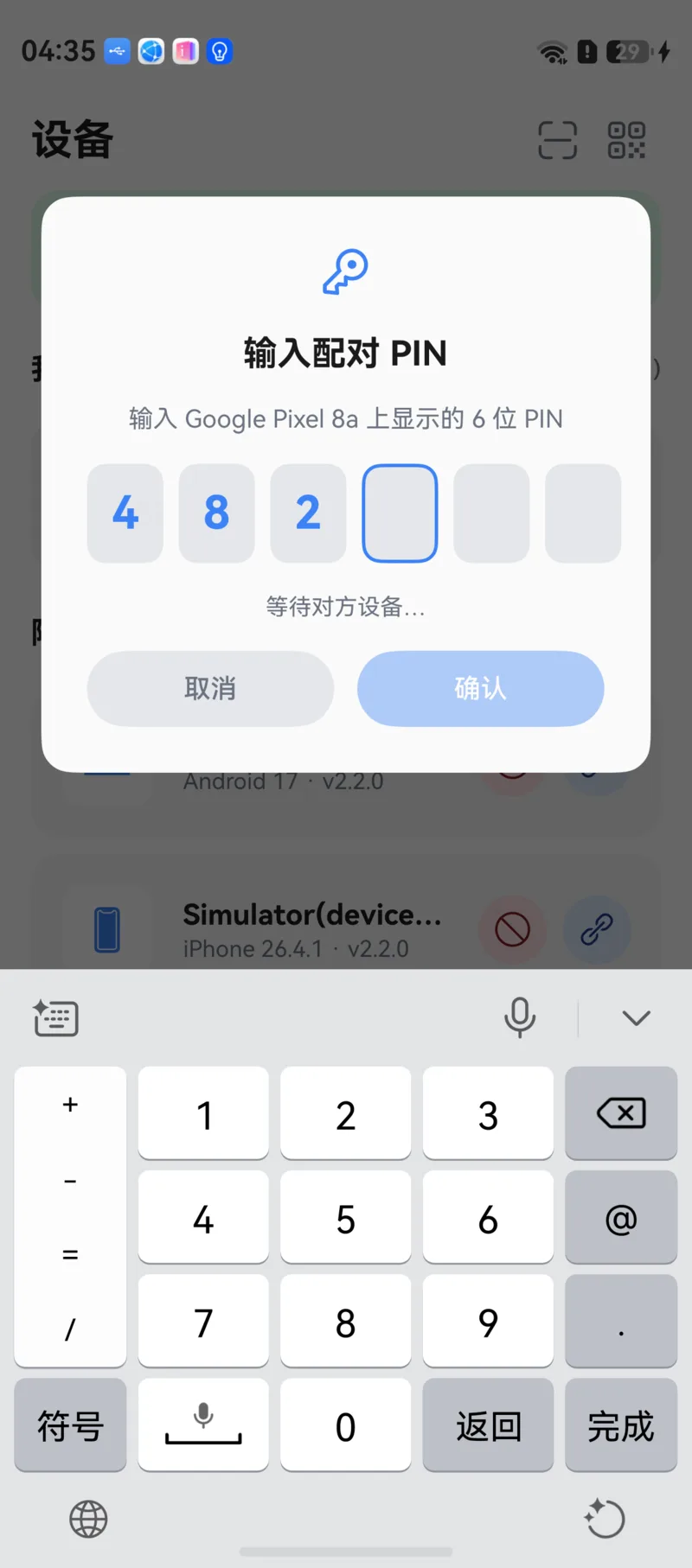
The most common method — discover and pair:
- Find the target device in the Nearby Devices list and tap Pair.
- A 6-digit pairing PIN appears on the other device.
- Enter that PIN on this device (or confirm on the other device). Once verified, pairing is complete.
PINs expire
For security, the pairing PIN expires after a short time. If you see PIN expired, simply start pairing again. Too many wrong attempts temporarily lock pairing; reopening the pairing code screen resets it.
Pairing QR Code
When the other device is a desktop or you'd rather not type, scanning is just as easy:
- On one device, tap Show Pairing Code to display the pairing QR code.
- On the HarmonyOS device, tap Scan to Pair and point the camera at the QR code.
- Pairing completes automatically after a successful scan.
Camera permission
Scanning requires camera permission. CrossPaste only uses the camera while scanning a pairing QR code and never accesses it in any other situation.
Manual Connection
When auto-discovery doesn't work (e.g., devices on different subnets), connect by IP address:
- On the target device, find its IP address and port (shown at the bottom of the pairing code screen).
- On this device, tap Add Device Manually and enter the IP and port.
- Once connected, complete PIN verification as prompted.
3. Device Management
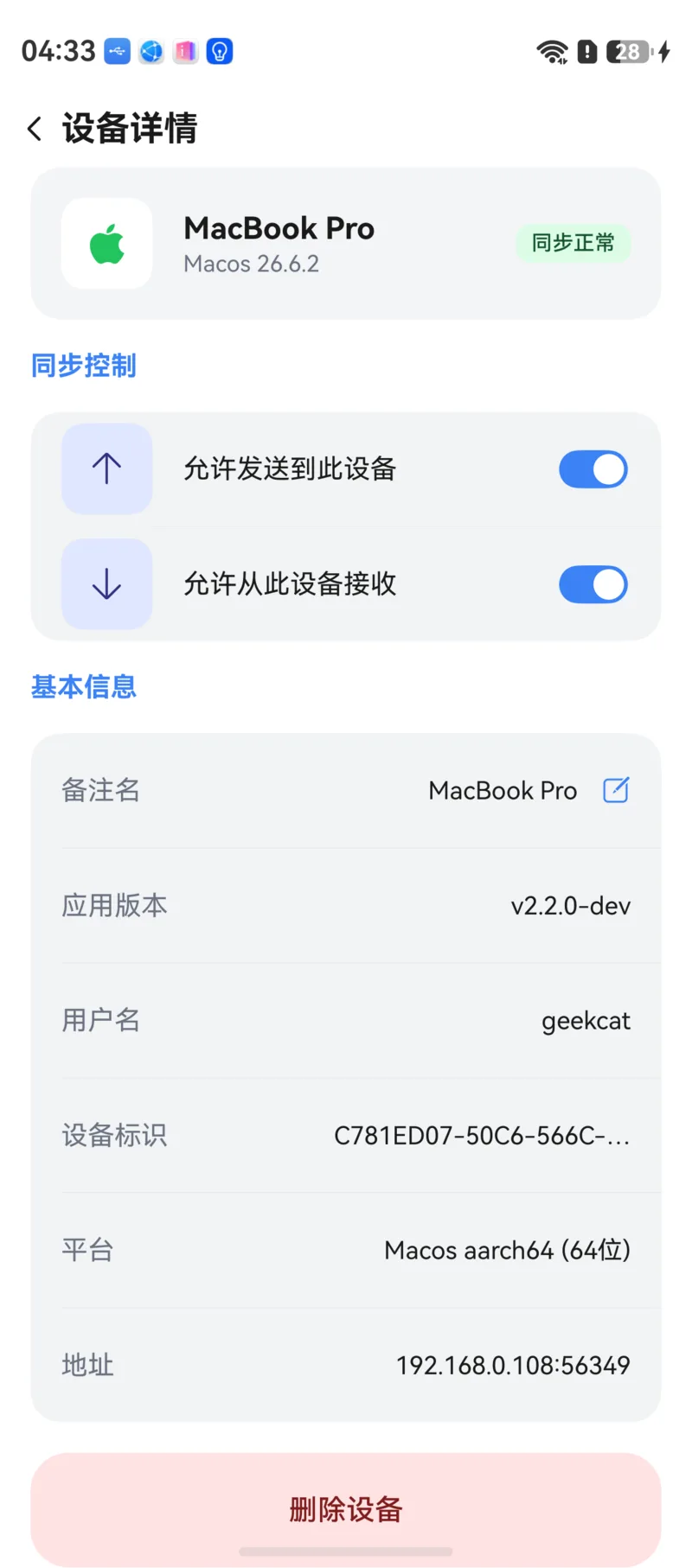
Paired devices appear in the My Devices list. Tap a device to open its detail screen and manage it.
Rename
Give devices memorable names — especially useful when you own several similar devices. Tap Rename on the device detail screen to change the name.
Sync Direction Control
Under Sync Control on the device detail screen, you can fine-tune how each device syncs:
- Allow sending to this device: Whether to send pasteboard data to this device
- Allow receiving from this device: Whether to accept pasteboard data from this device
This lets you set up one-way sync — for example, only from your computer to your phone, never the other way. The device's status in the list reflects the setting: Outgoing Only, Incoming Only, or Sync paused.
Send / Receive control is a Pro feature
Per-device send / receive toggles require Pro Membership.
Device Info
The detail screen shows the other device's name, device ID, platform and version, and whether the connection is protected by end-to-end encryption.
Remove & Block
- Remove device: After removal, you'll need to pair again before syncing.
- Block: The device is no longer paired and no longer appears under Nearby Devices. Blocked devices can be removed from the blocklist in Network settings.
Re-pairing required
Once a device is removed, you will need to pair again to restore the connection.
4. Discovery & Pairing Switches
Network settings include two switches related to pairing:
- Allow discovery by new devices: When off, this device won't appear in other devices' Nearby Devices lists — handy for privacy on public networks
- Allow new devices to wake pairing screen: When off, pairing requests from other devices won't pop up on this device
5. Background Keep-Alive and Persistent Notification
HarmonyOS reclaims apps that stay in the background for a long time. To keep receiving content synced from other devices while in the background, CrossPaste requests a system continuous task when sync is enabled, and a persistent notification appears in the notification panel.
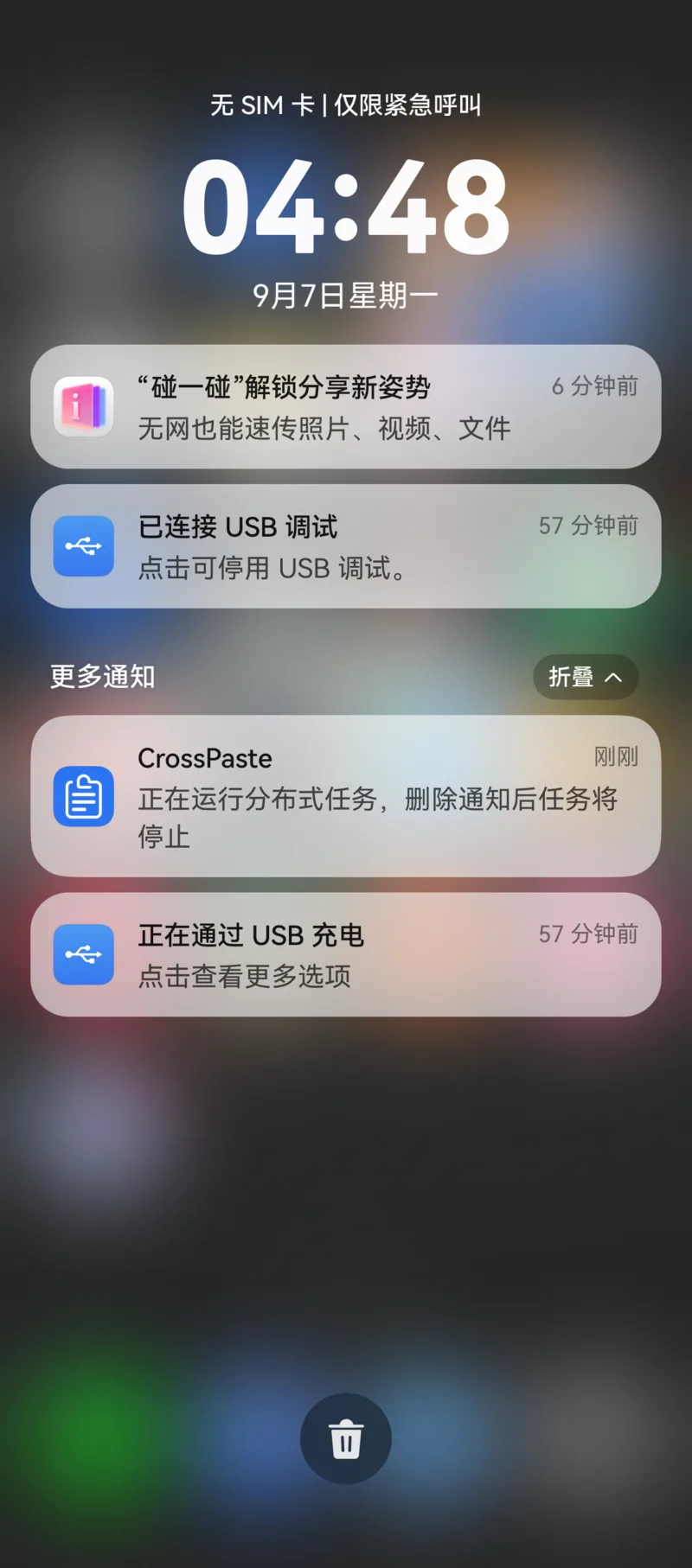
- Don't dismiss this notification: Dismissing it interrupts background sync until you next open the app, which restores it automatically
- If a Background sync was interrupted notice appears at the top of the Devices screen, the system reclaimed the background task. If this happens often, allow CrossPaste to run in the background in system Settings
Receives in the background, but can't read
Background keep-alive only affects receiving content from other devices. HarmonyOS doesn't allow apps to read the clipboard in the background, so content copied on this device is still only recorded automatically while CrossPaste is in the foreground. See Pasteboard.
6. Desktop Integration
Pairing works exactly the same way between mobile and desktop. Once paired, you unlock the full cross-platform experience:
- Real-time sync: Content copied on your computer is available on your phone instantly, and vice versa
- All types supported: Text, links, images, files, HTML, RTF, colors — every type syncs across platforms
- Targeted sync: Pick specific pasteboard items and sync them only to the devices you choose
Desktop Tutorial
If you haven't installed CrossPaste on your desktop yet, see the Desktop Pasteboard Tutorial.