
Settings — Customize CrossPaste to Your Workflow
CrossPaste offers a rich set of options — from appearance to network behavior, storage policy to sync rules — so everything works the way you want.
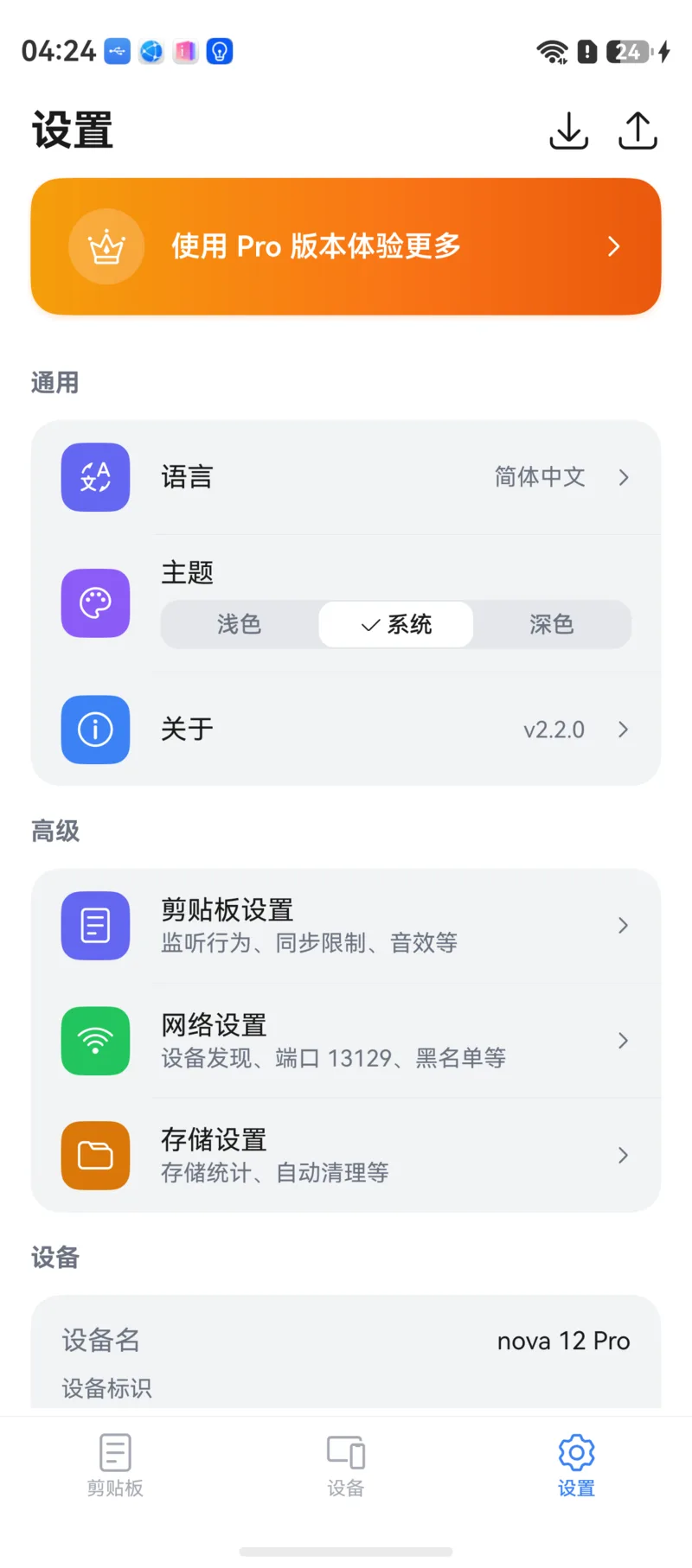
1. General
Language
The app follows the HarmonyOS system language by default, and you can also switch manually in settings.
Theme
Choose from three theme modes:
- Light — bright and clean, ideal for daytime
- Dark — dark background, easier on the eyes at night
- System — follows the HarmonyOS dark / light setting automatically
About
View the current app version and changelog, open the CrossPaste website, and find feedback channels.
2. Clipboard
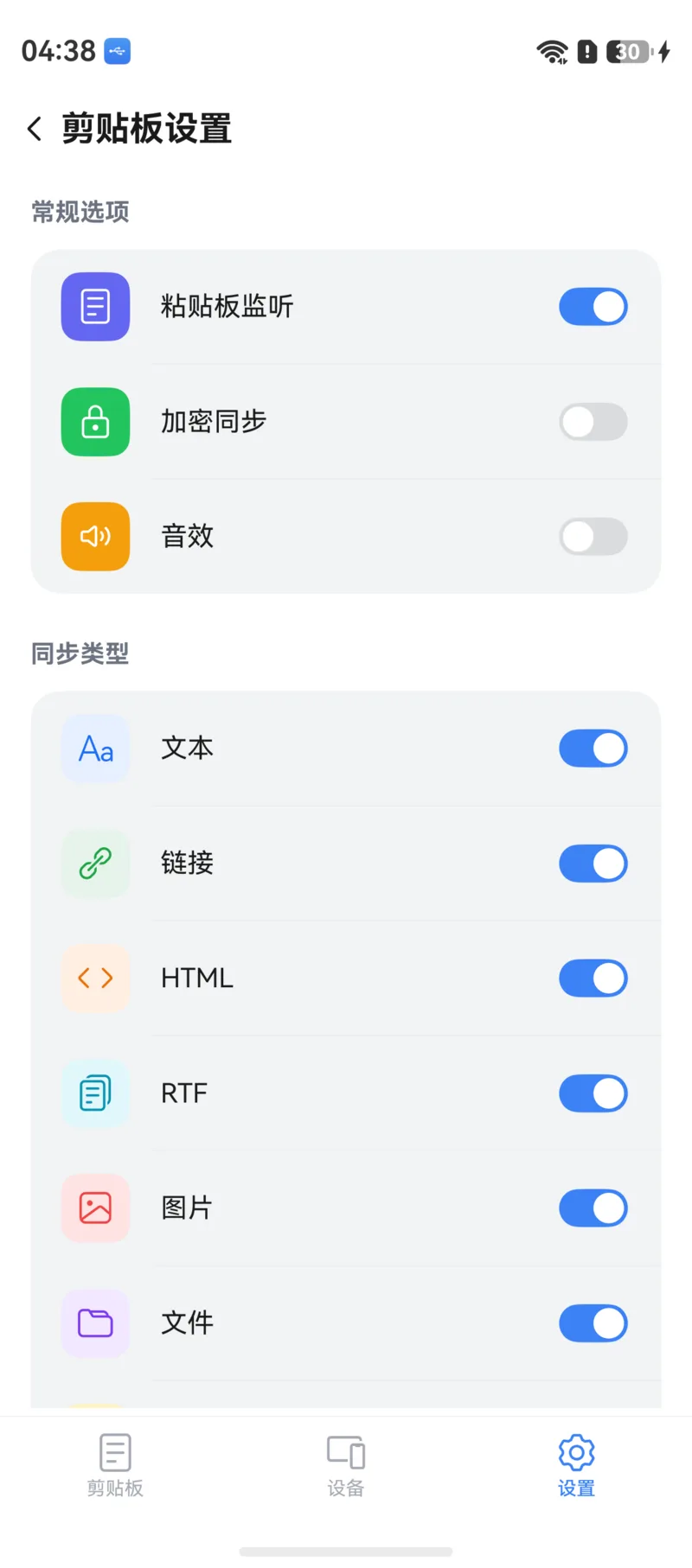
Pasteboard Listening
Controls whether CrossPaste automatically records what you copy on this device while it's in the foreground. When off, local copies no longer enter the Pasteboard, but receiving content from other devices and manual import via the share sheet are unaffected.
Foreground only
HarmonyOS doesn't allow apps to read the clipboard in the background, so this switch only takes effect while CrossPaste is in the foreground. On first launch you need to grant clipboard read permission in the system dialog. See Pasteboard.
Encrypted Sync
When enabled, all data transfer between devices is end-to-end encrypted. Pro feature.
Sound
Play a sound when sync succeeds. Toggle as you like.
Sync Types
Control sync per content type: text, link, HTML, RTF, image, file, and color. When a type is turned off, that content stays on this device only and is never sent to other devices.
Sync File Size Limit
Set the maximum file size allowed per sync. Files over the limit are not synced automatically, preventing large files from filling up storage unexpectedly. Removing the limit requires Pro Membership.
3. Network
Allow Discovery by New Devices
Controls whether this device appears in other devices' Nearby Devices lists. Turn it off for privacy on public networks.
Port
View the port CrossPaste uses for device-to-device communication. You'll need it when adding a device manually.
Blocklist
View blocked devices and remove them from the blocklist to allow pairing again.
4. Storage
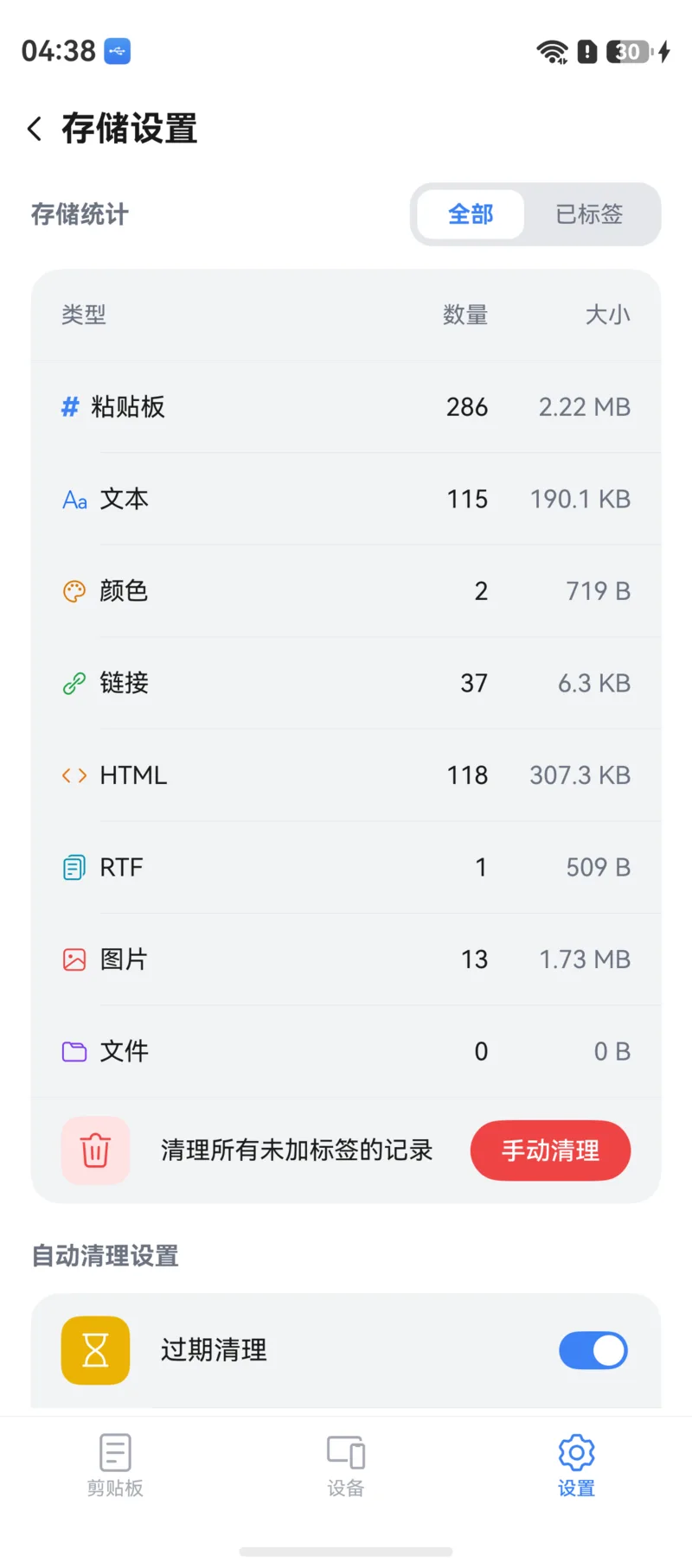
Storage Stats
See at a glance how much space CrossPaste is using, broken down by paste type.
Manual Cleanup
Clear all untagged items with one tap to free up space quickly.
Auto-Cleanup
CrossPaste intelligently removes pasteboard items that haven't been used for a long time to free up storage. Two policies can be configured separately:
- Expiration Cleanup: Set a retention period for images and files; items past it are deleted automatically
- Threshold Cleanup: Set a maximum storage size and a cleanup percentage; when the limit is exceeded, the oldest items are removed proportionally
Tagged items are exempt from auto-cleanup
If you have important pasteboard content you don't want cleaned up, add a tag to keep it permanently.
5. Device Name & Device ID
In Settings you can view and change this device's name — that's the name other devices see in their lists. The device ID is a random instance ID generated by CrossPaste on first launch; it does not read any system device identifier.
Pro Membership
Upgrade to CrossPaste Pro to unlock end-to-end encryption, multi-device connection, large file transfer, and more. See Pro Membership.