
Home Screen Widget — Quick Clipboard Access on Your Home Screen
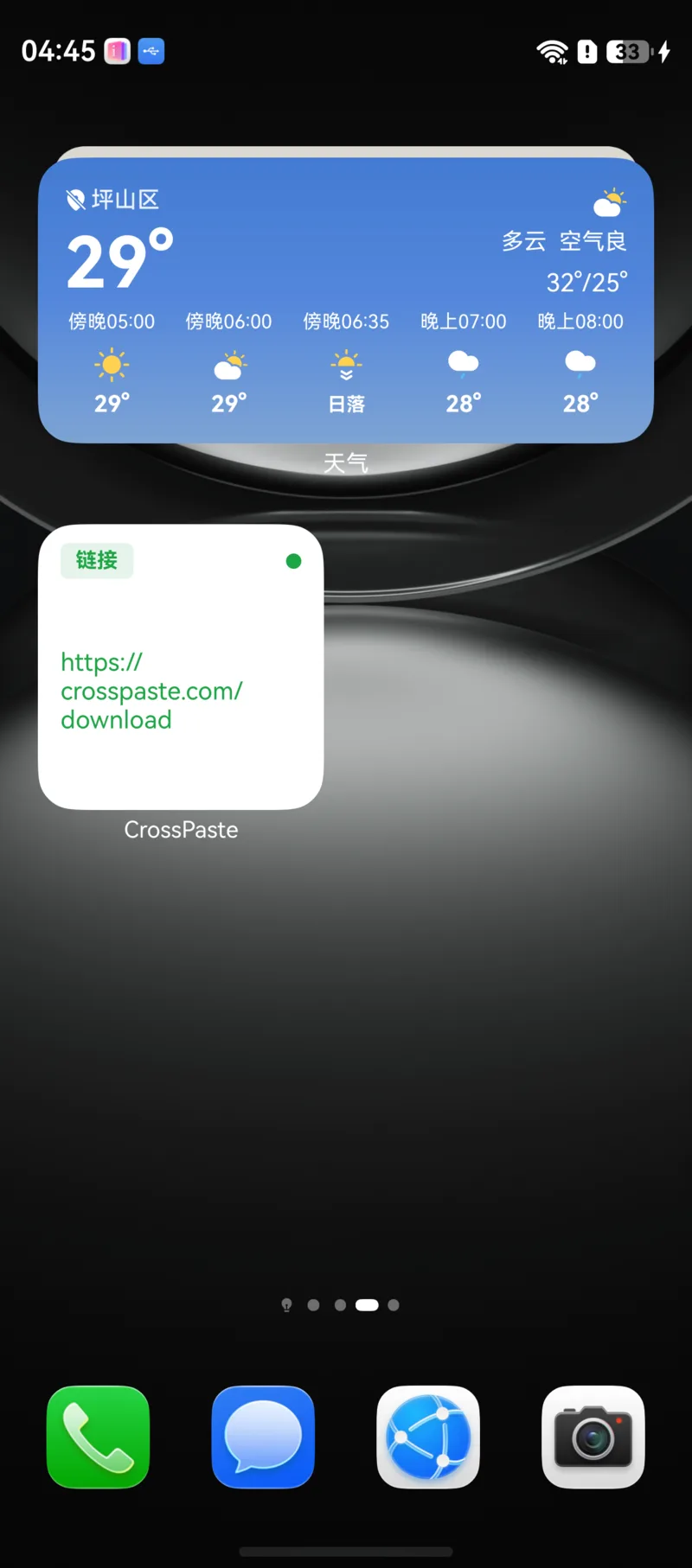
See your latest pasteboard content right on the HarmonyOS home screen without opening the app. The CrossPaste service widget puts your clipboard history within reach.
Upgrade to Pro to unlock this feature
The Home Screen Widget is a Pro feature. On the free tier, the widget shows Upgrade to Pro to unlock widget features after it's added. See Pro Membership.
1. Add the Widget
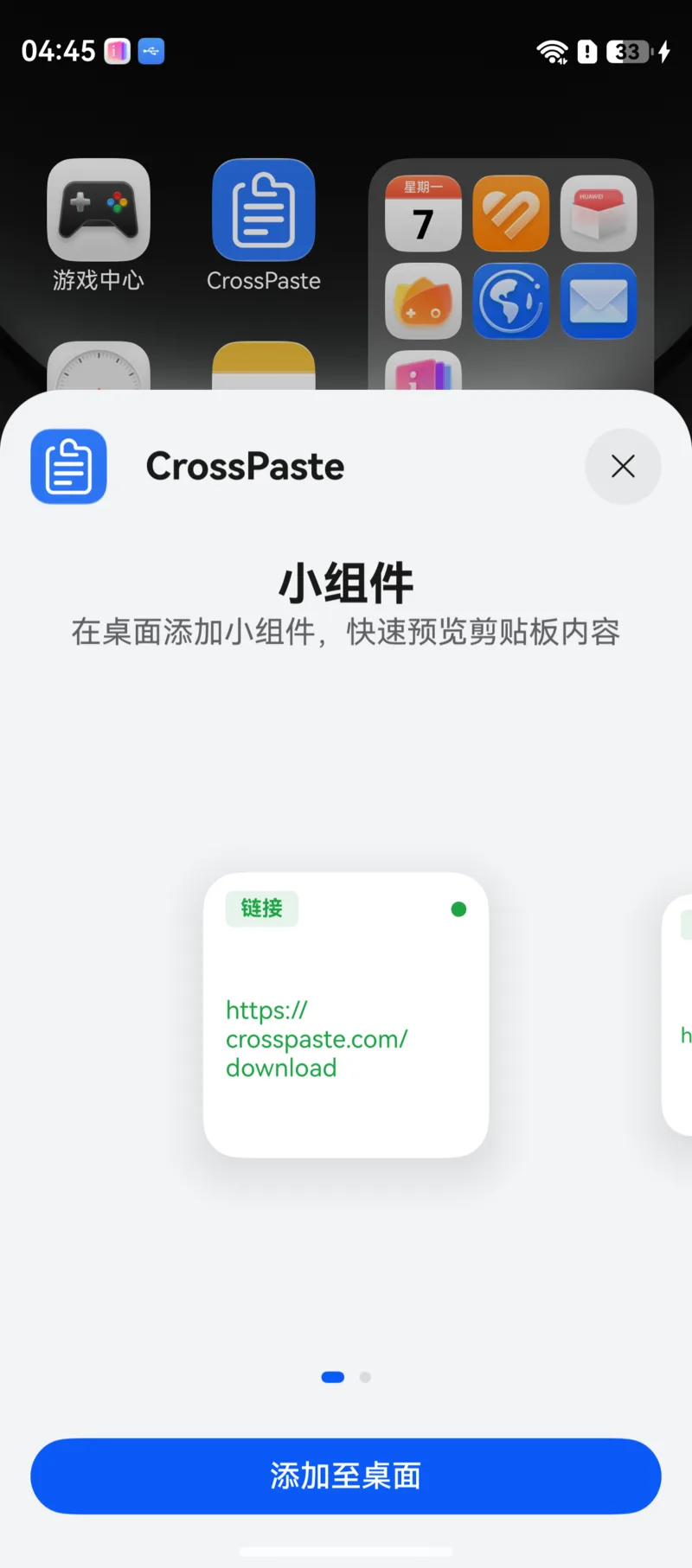
Three steps to put the CrossPaste service widget on your home screen:
- Long-press the CrossPaste icon on the home screen and select Service widget.
- Pick the widget size you prefer.
- Tap Add to home screen.
2. Features
The CrossPaste service widget gives you an at-a-glance pasteboard preview:
- Shows a preview of your most recent pasteboard item
- Displays a type indicator so you can identify content quickly
- Tap the widget to open CrossPaste directly
- Automatically adapts to the HarmonyOS light / dark theme
3. Content Preview
| Type | Preview |
|---|---|
| Text | First lines of text |
| Image | Thumbnail; shows a count when there are multiple images |
| File | Filename; shows a count when there are multiple files |
| Link | URL text |
| Color | Color swatch and value |
| HTML / RTF | Plain text preview |
When the Pasteboard is empty, the widget shows No clipboard content yet.
4. Tips
- The widget updates with the Pasteboard, always showing your latest item
- Want to see what you just copied on your computer right on your home screen? Pair the desktop app and synced content appears on the widget instantly