
Import & Export — Your Clipboard Data, Never Lost
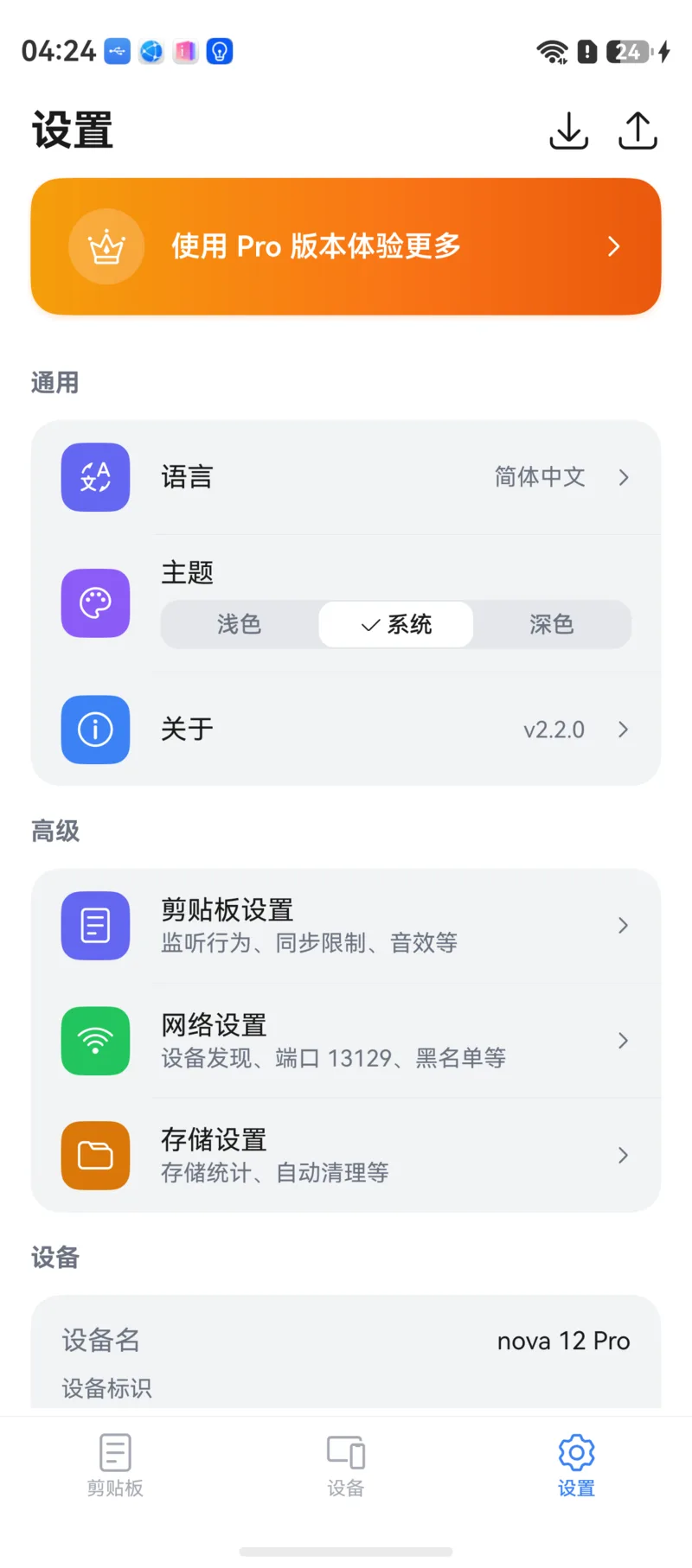
Getting a new phone? Need to back up important data? CrossPaste's import and export feature gives you complete backup and restore for your pasteboard content, keeping what matters safe.
Upgrade to Pro to unlock this feature
Import & Export is a Pro feature. See Pro Membership.
1. Export
Export your pasteboard data to a backup file, with precise control over what's included.
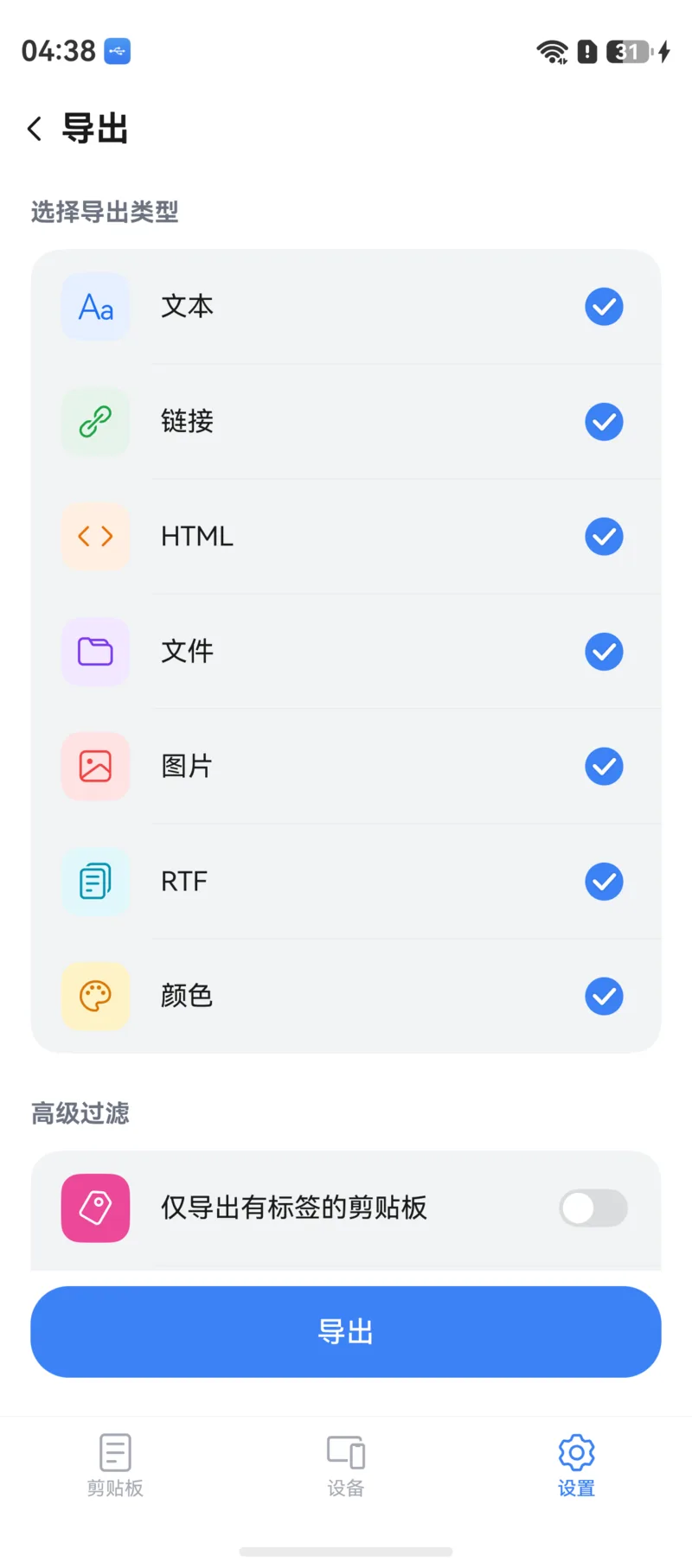
Choose Types to Export
Check the paste types you want to export, in any combination:
- Text, Link, Image, File, HTML, RTF, Color
Advanced Filters
- Export tagged clipboard items only: Include only tagged items — ideal for exporting a carefully curated collection
- Maximum backup file size: Cap the size of the backup file so it doesn't take up too much storage
Export Process
- Go to Export in Settings and choose your types and filters.
- Tap Export. A system save dialog appears — pick where to save the backup file.
- Progress is shown in real time, and Export successful appears when it's done.
No storage permission needed
On HarmonyOS, export and import go through the system save dialog and file picker, so the app doesn't need storage permission.
2. Import
Restore pasteboard data from a backup file and merge it with your existing data.
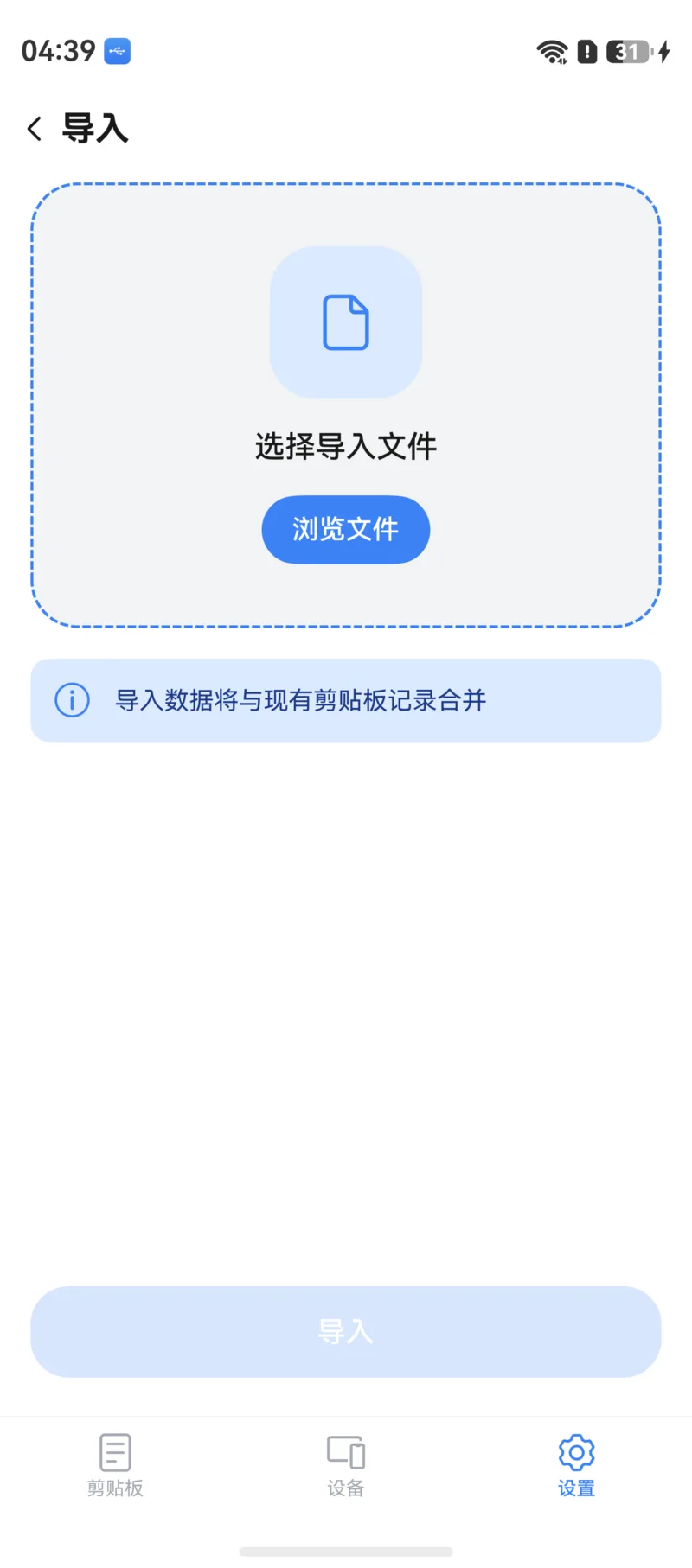
Import Steps
- Go to Import in Settings.
- Select a previously exported backup file in the system file picker.
- Confirm and wait for the import to finish.
Imported data is merged with your existing pasteboard records: duplicate items are skipped, and tags are restored along with the items.
3. Scenarios
- Device migration: Export on your old phone, import on the new one, and your full pasteboard history comes along
- Regular backup: Make periodic exports a habit to guard against unexpected data loss
- Cross-platform migration: The backup format is shared with the desktop, Android, and iOS apps, so you can move data between platforms
- Content archiving: Export items under a specific tag to archive them and free up storage
Backup files are stored locally
Exported backup files are saved to the local location you choose and are never uploaded to any server.