
Pasteboard — Your Cross-Device Clipboard Hub
The Pasteboard is the core of CrossPaste. Every time you copy something, CrossPaste automatically records it and syncs it across your connected devices in real time. You can browse, search, manage, and reuse your clipboard history at any time.
1. Supported Paste Types
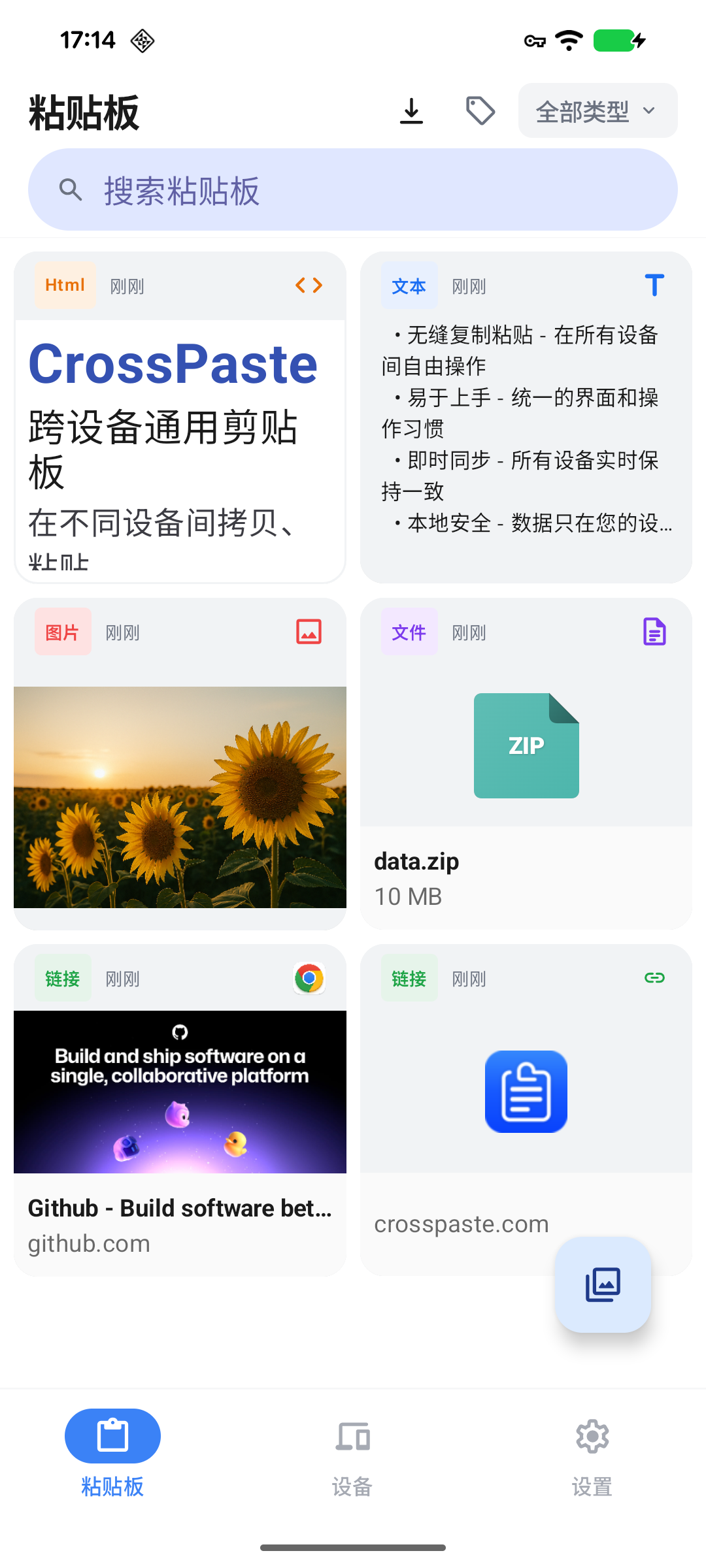
CrossPaste supports 7 paste types:
| Type | Description |
|---|---|
| Text | Plain text content |
| Link | URLs and web links |
| Image | Pictures and screenshots |
| File | Documents, archives, and other files |
| HTML | Rich web content |
| RTF | Rich Text Format content |
| Color | Color values (HEX, RGB, etc.) |
Multi-type recording
A single copy operation may record multiple types at once. For example, copying text from a webpage may capture both plain text and HTML. CrossPaste saves all types and displays them based on priority.
2. Browsing & Viewing
Grid View
The pasteboard displays your clipboard history in an adaptive grid layout, with the most recent items shown first. Each card shows a content preview, a color-coded type indicator bar, and a timestamp.
Detail View
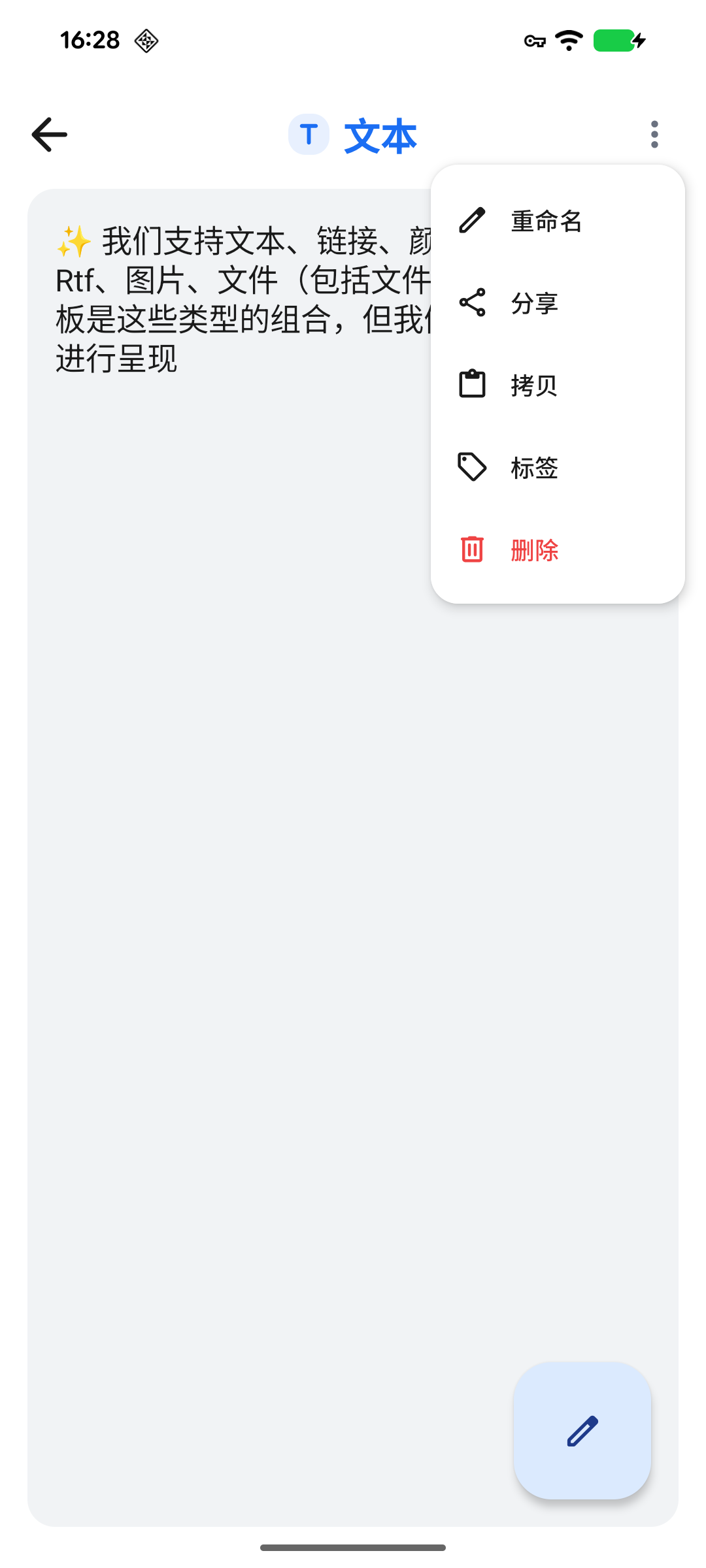
Tap any card to open the detail view:
- Text: Editable in-place
- Image: Supports pinch-to-zoom
- File: Shows file info (name, size, path)
- Menu button (⋮): Access more actions
- Long-press: Opens the context menu
Copying an existing item won't trigger sync
When you copy an item that already exists in your pasteboard, CrossPaste will not trigger a new sync to other devices — there's no need for redundant transmission.
3. Tag Management
You can add custom tags to pasteboard items for easier organization and retrieval. Use tags to filter items quickly and build a personal snippet library.
Tagged items won't be auto-cleaned
CrossPaste enables automatic cleanup by default, removing items that haven't been used for a long time to free up space. Tagged items are exempt from auto-cleanup, so use tags to preserve important entries.
4. Search & Filter
- Text search: Quickly find items by content keywords
- Type filter: Filter results by paste type
- Tag filter: Filter by tag
- Combinable: All filters can be combined for precise results
5. Delete
Swipe or use the delete action to remove pasteboard items you no longer need.
Delete is irreversible
Once a pasteboard item is deleted, it cannot be recovered. Make sure you no longer need an item before deleting it.